

What you’ll accomplish
You will add a data-driven Widget to a Design, choose the appropriate data source, configure a safe fallback, and understand what must run outside Layarva.Prerequisites
- A workspace role with content editing permission.
- A Design open in Studio Canvas.
- Valid data that matches the selected Widget’s schema.
- For Push API, a trusted backend or automation that can store a Workspace API Key.
- For Secure WebSocket, a reachable
wss://endpoint that emits the Layarva runtime envelope.
Choose a data source
Add and select a Widget
- Open Studio → Designs, then open a Design.
- Select Widgets in the left toolbar.
- Find the required Widget category.
- Double-click the Widget card to add it to the Canvas.
- Select the Widget on the Canvas.
- In the right inspector, scroll to Data Source.
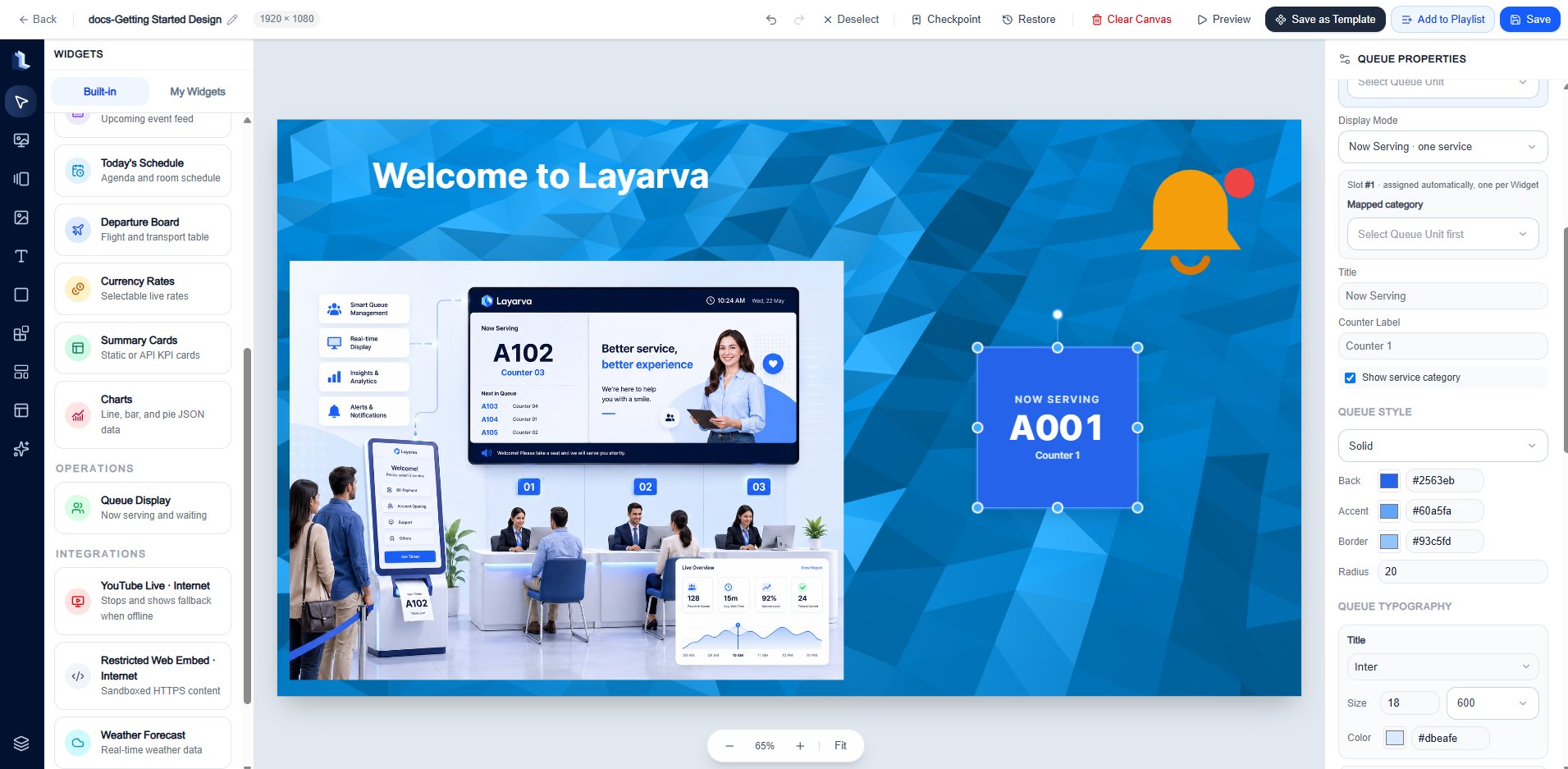
The Built-in Widget browser contains the supported data, schedule, operations, and integration components.
Use Static JSON
Static JSON is saved inside the Design. It is also the safest fallback when a dynamic source is temporarily unavailable.- Select Static JSON under Data Source.
- Open Advanced JSON.
- Paste a payload that matches the selected Widget.
- Select Apply JSON.
- Preview the Design, then select Save.
- Publish the Playlist again whenever the saved static data changes.
Asia/Jakarta, and plain text without HTML.
Use Layarva Push API
Push API stores the latest accepted snapshot in Layarva. Players read that secured snapshot on the Widget refresh interval and retain the last valid data during temporary failures.- Select Layarva Push API under Data Source.
- Open API Setup & Usage Guide.
- Copy the Unique Widget ID.
- Copy the Workspace API Key when its full value is shown.
- Store the key in the sending system’s secret manager.
- Save and publish the Design once.
- Send complete replacement snapshots to the production endpoint:
Use Secure WebSocket
In WebSocket mode, each online Player opens an outbound connection to the configured endpoint and waits for snapshot messages.Do you need to create a WebSocket server?
Usually, yes. Layarva currently provides the Player-side WebSocket client, but not a generic hosted WebSocket relay for customer Widget data. You have three choices:- Build and host a small relay service.
- Use a managed WebSocket service and make it emit the required envelope.
- Connect directly to an existing provider endpoint only when it already uses
wss://, needs no secret in the URL, and emits a compatibleRuntimeDataEnvelope v1.
Configure the endpoint
- Select Secure WebSocket under Data Source.
- Enter an endpoint such as
wss://stream.example.com/widgets/wdg_example. - Set the initial reconnect interval. Five seconds is a reasonable starting point.
- Configure declarative mapping only if
envelope.datadoes not already match the Widget schema. - Keep valid Static JSON as the fallback.
- Save and publish the Design.
wss://. Plain ws:// is accepted only for localhost development.
See Build a Widget WebSocket Relay for a working Node.js server, the message envelope, TLS, testing, reconnect behavior, and production checklist.
Expected result
- Static JSON renders from the saved Design.
- Push API renders the latest accepted Layarva snapshot without republishing.
- Secure WebSocket renders valid snapshots received from the configured relay.
- When a dynamic source fails temporarily, the Player keeps the Last Known Good snapshot or returns to the configured static fallback.
Important notes
- Dynamic data changes content, not the Widget’s visual design.
- Publish once after changing the data-source mode or endpoint.
- The current Structured Push v2 contract supports Announcements, Today’s Schedule, Events, and Departure & Arrival.
- Other legacy Widgets can show a different managed API contract in their Studio integration dialog. Do not mix legacy request bodies with Structured Push v2.
- A WebSocket connection is online-only. Test failure behavior before deploying it to a production Screen.