

What you’ll accomplish
You will claim a temporary Cloud Player pairing session and add the resulting Screen to your workspace.Prerequisites
- A supported Player displaying a six-digit pairing code.
- Screen pairing permission in the target workspace.
Steps
- Start the Layarva Player on the display.
- Keep the pairing-code screen visible.
- In the Layarva web application, open Screens and select Pair Screen.
- Select Cloud.
- Enter the device name and six-digit code.
- Configure optional unlock protection, assignment, resolution, and content fit.
- Select Pair Device.
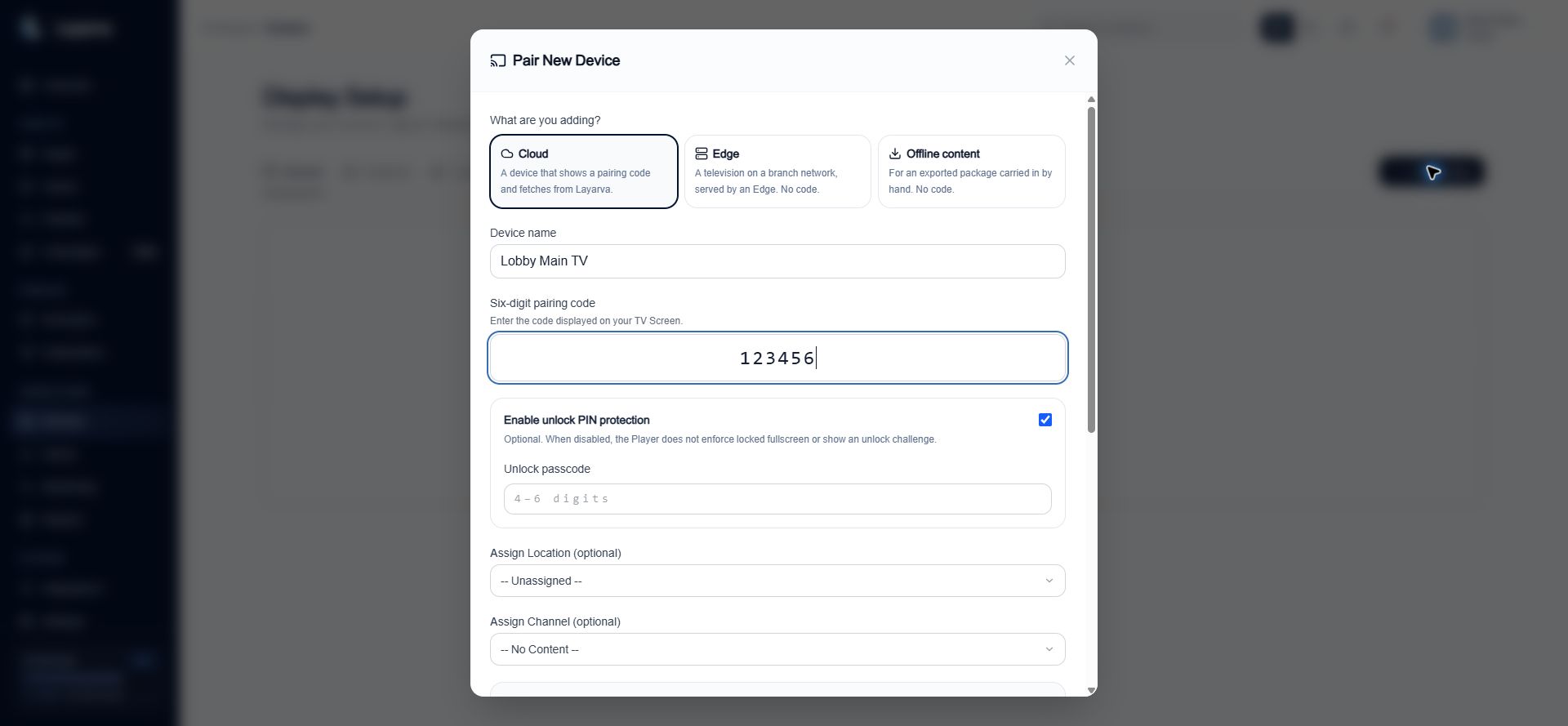
Cloud pairing combines the temporary code with the Screen name, assignments, output settings, and optional unlock protection.
How pairing works
- The Player requests a temporary pairing session and displays a six-digit code.
- The administrator enters that code in the workspace.
- Layarva verifies that the code is pending, unexpired, and within the workspace Screen quota.
- The Player’s permanent device token is attached to the new Screen record.
- The Player begins following the Screen’s assigned Channel.
Expected result
The Player leaves its pairing screen and the new Screen appears in the workspace Devices list.Important notes
- Pairing codes are temporary credentials. Do not share or screenshot a live code.
- A code can fail when it is invalid, expired, or already claimed.
- Unlock protection is optional but recommended for unattended public displays.
- Edge and Offline content Screens are created without this six-digit code. They use their own delivery workflows.
Troubleshooting
- Restart the pairing flow on the Player to generate a new code.
- Confirm that the browser and Player can reach Layarva.
- Do not reuse a code from another device or workspace.