

Open Operator Login
Open https://app.layarva.com/operator/login in a supported browser.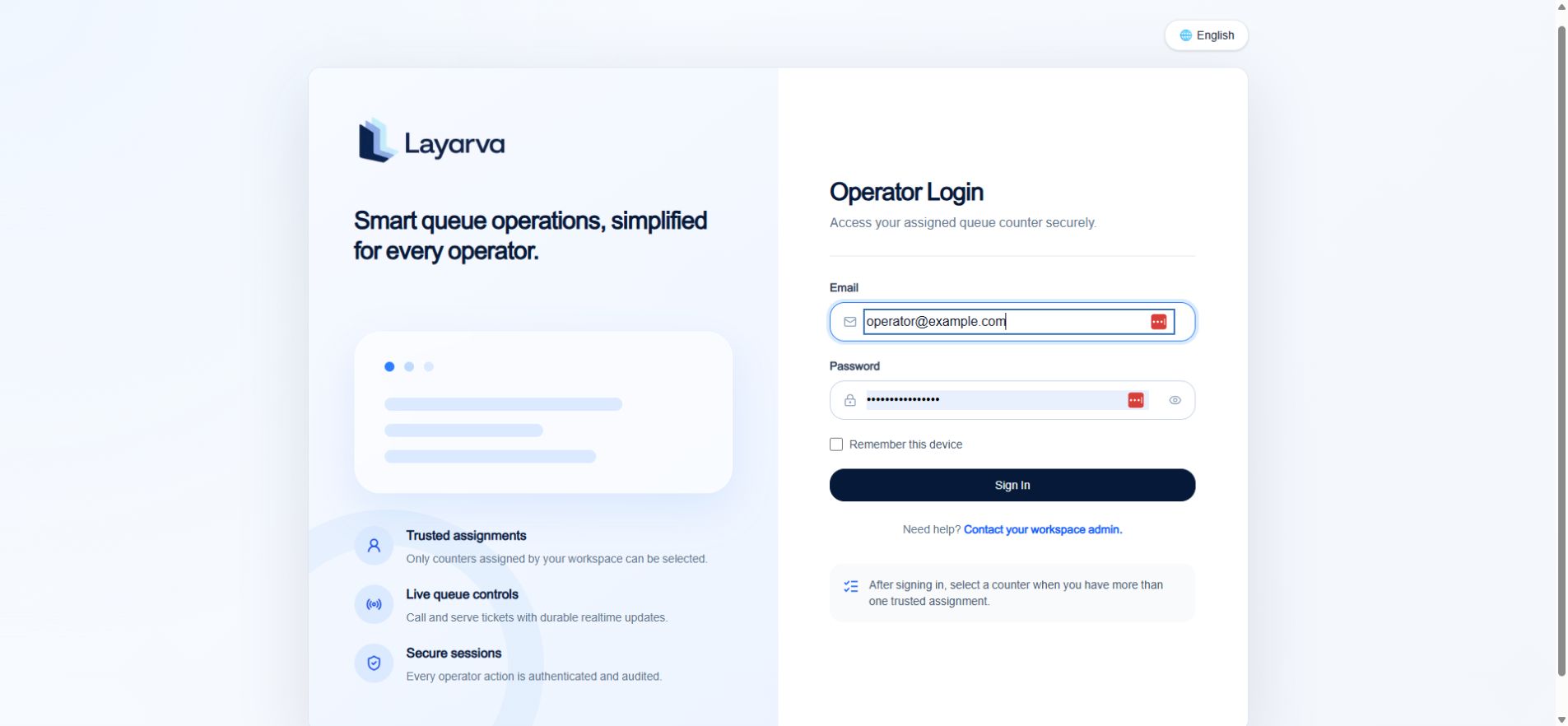
Operator Login accepts the operator's own account and explains that only trusted Counter assignments are selectable.
Requirements
- A Layarva account that belongs to the workspace containing the Queue Unit.
- Assignment to at least one trusted Counter.
- A supported browser with HTTPS access to Layarva.
- A stable connection to the Platform for Cloud Queue, or to the branch Edge for Edge Queue.
Sign in and select a Counter
- Enter the operator’s email and password.
- Optionally select Remember this device only on a trusted workstation.
- Select Sign In.
- If the account has more than one trusted assignment, select the Counter physically being operated.
- Confirm that the expected Queue Unit, Counter, and available service Categories are shown.
Process tickets
The available controls follow the ticket lifecycle and current Counter assignment:- Call next selects a compatible waiting ticket.
- Recall repeats the active call when the customer did not hear it.
- Start service moves the called ticket into service.
- Complete records a successful service outcome.
- No-show closes the ticket using the Queue Unit’s no-show policy.
Important notes
- Counter compatibility depends on the Categories assigned in Queue Management.
- Sign out or lock the workstation before another person takes over.
- If multiple operators share a physical Counter across shifts, each should use their own account so reports remain attributable.
- An Operator console does not replace the customer Kiosk or Queue Display.
Troubleshooting
- Ask a workspace Admin to verify membership and Counter assignment when no Counter is selectable.
- Confirm that the Queue Unit and Counter are active.
- For an Edge Queue, verify that the workstation can reach the branch Edge and that Edge holds authority for that Queue Unit.
- Do not reuse an expired or revoked browser session.