Open the Cloud Player
Open https://app.layarva.com/display on the device that will drive the display. The page requests a temporary six-digit pairing code and shows a countdown until that code expires.Open Cloud Player
Start the pairing page on the display device.
Check this device
Measure the same browser before mounting the display.
Minimum requirements
- Chrome or Edge 111+, Firefox 111+, or Safari 16.4+.
- 2 GB memory and a 1280×720 or larger display.
- H.264 playback and at least 512 MB of persistent browser-storage headroom.
- HTTPS access to
app.layarva.comandcdn.layarva.comon port 443. - Full-screen or browser kiosk mode for unattended displays.
Pair the browser to a Screen
- Keep the six-digit code visible on the Cloud Player.
- Sign in to Layarva and open Screens → Pair Screen.
- Choose Cloud.
- Enter a descriptive Screen name and the live pairing code.
- Optionally assign a Location, Channel, resolution, content fit, and unlock PIN.
- Select Pair Device.
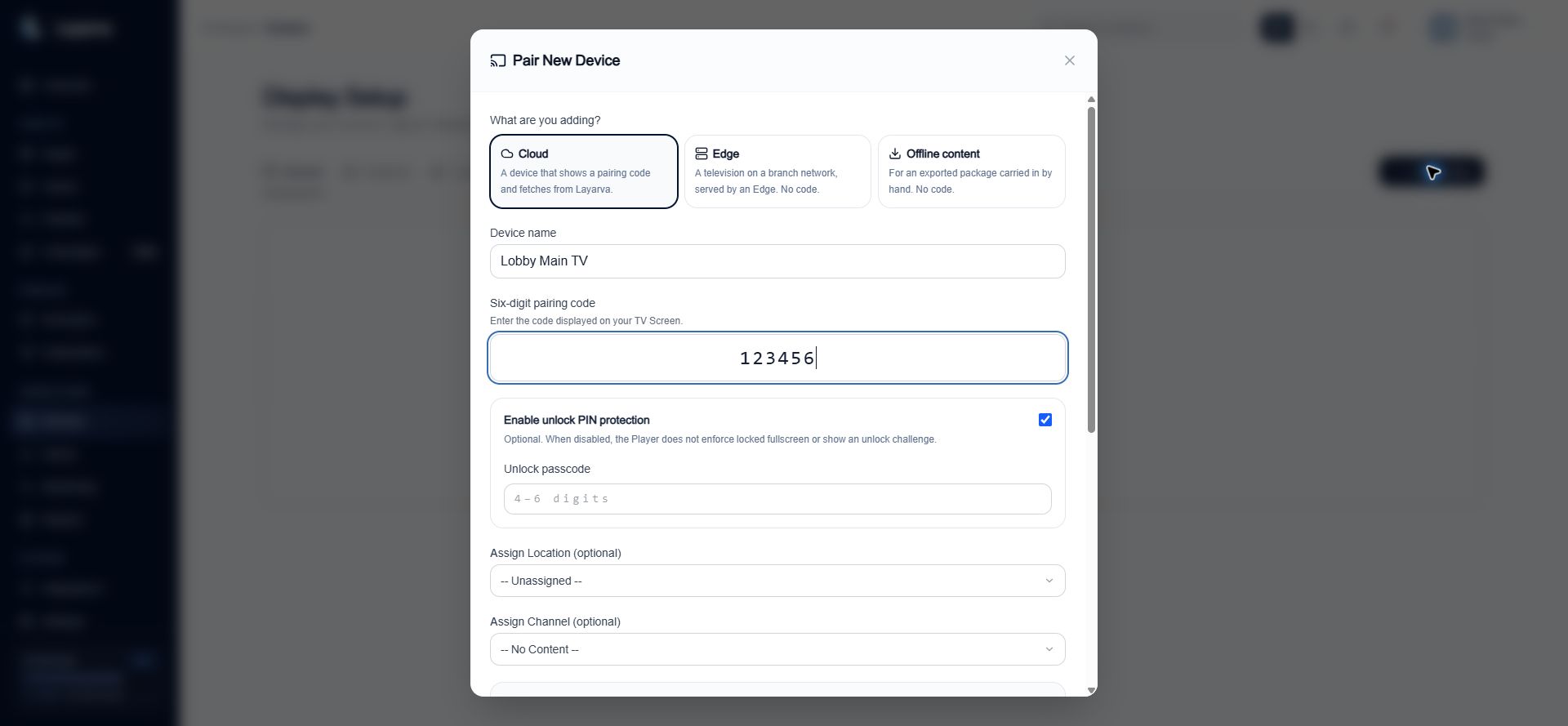
The Platform pairs the temporary Cloud Player session to a permanent Screen record and its Channel assignment.
How content reaches the Player
- A Playlist is published to a Channel.
- Layarva creates an immutable Publication that references the exact Playlist version and resources.
- The paired Screen follows its assigned Channel.
- The Player downloads and verifies the new Publication, then promotes it for playback.
- Heartbeats and playback evidence appear in Monitoring and Proof of Play.
Location sharing
The pairing page may offer Share device location. Location is optional and is submitted only after pairing. Denying the browser permission does not stop playback; the Screen simply cannot contribute a location observation.When connectivity fails
A Cloud Player cannot receive a new Publication or report health while disconnected. Cached or last-known-good resources may continue, but Cloud should not be described as a fully offline delivery mode. Use Layarva Edge for branch continuity or a signed Offline package for sites with no network.Troubleshooting
- Generate a new code when the countdown expires or the code was already claimed.
- Run Device Check in the same browser used by the Player.
- Allow both Layarva domains through firewalls, captive portals, DNS filters, and TLS inspection.
- Confirm that the Screen has a Channel and that the Channel has a current Publication.
- Use the Layarva Android Player instead of an outdated Smart TV browser.