

What you’ll accomplish
You will create an Edge device record, receive its temporary pairing code, and verify that the branch device becomes active.Prerequisites
- Owner or Admin access with Queue and Screen management permission.
- A supported Windows or Android Edge installation.
- Outbound internet access for initial pairing.
- LAN access from the future Kiosks and Screens to the Edge host.
Create the Edge record
- Open Queue → Edge or Screens → Edge.
- Select Add Edge.
- Enter a name that identifies the physical branch machine.
- Select Windows or Android.
- Select Create and get code.
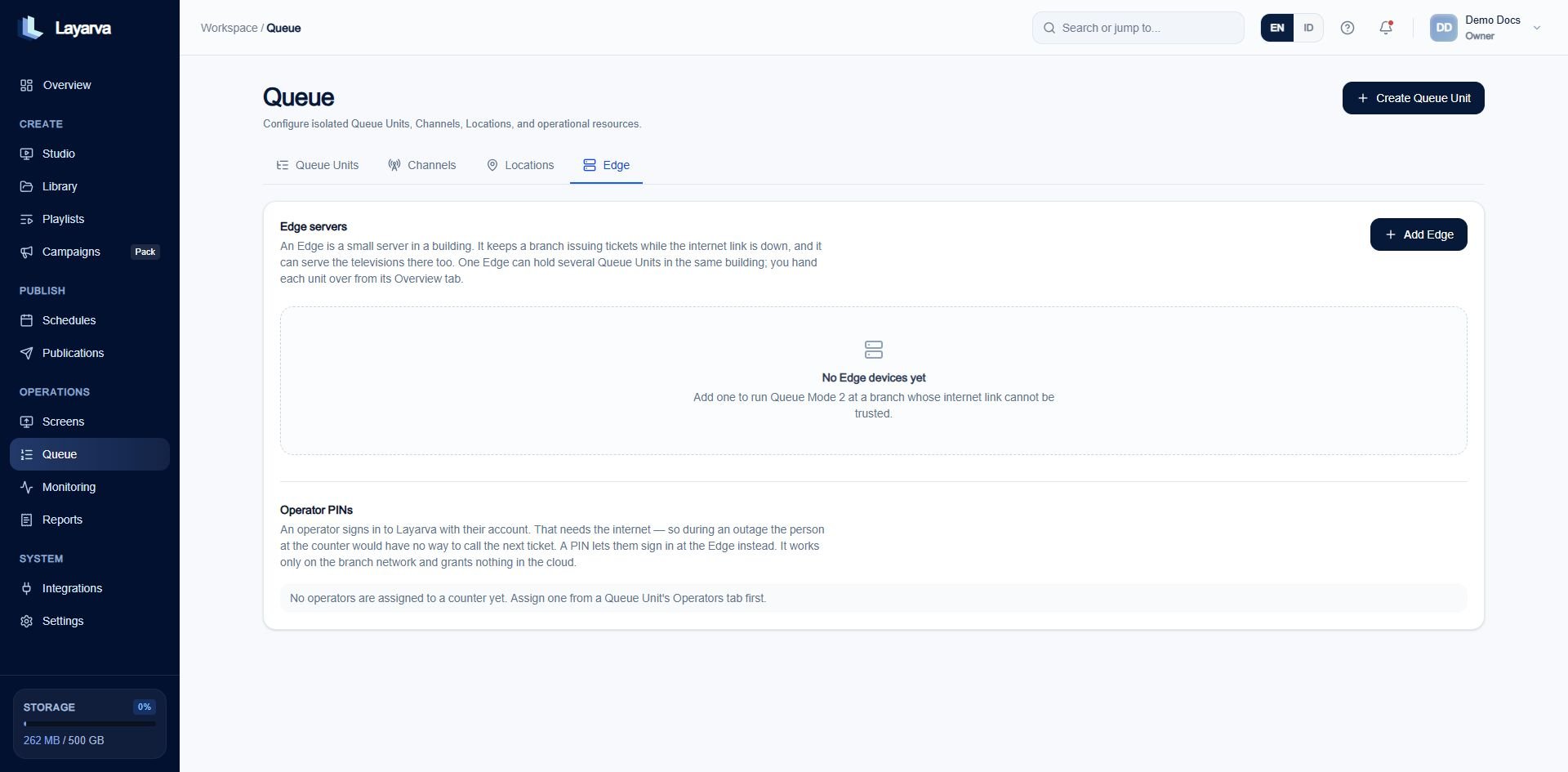
Edge devices are managed at workspace level because one Edge can serve several Queue Units and Screens.
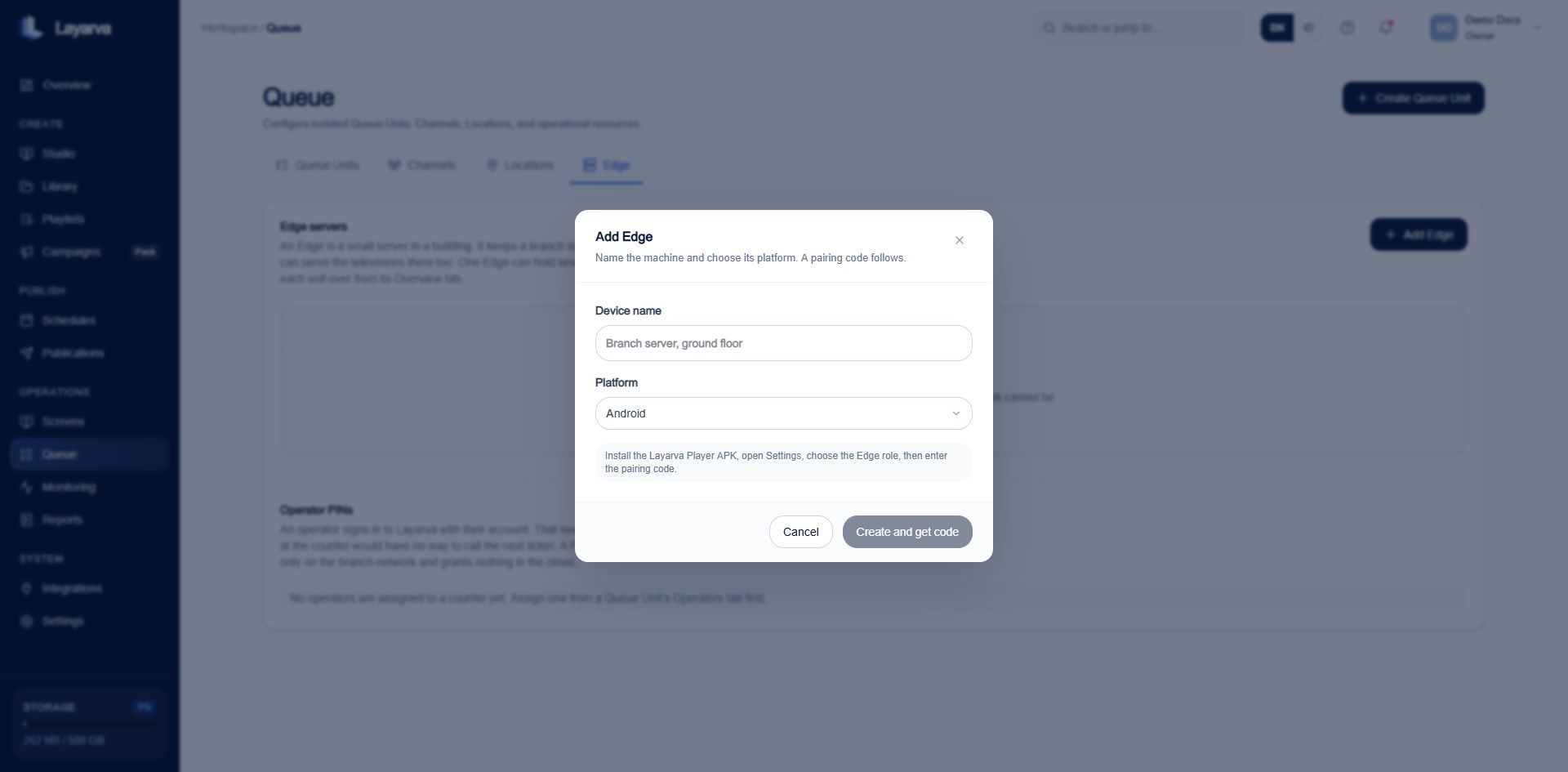
Choose the installed platform before Layarva creates the Edge record and pairing code.
Pair the branch software
- Install and open Layarva Edge on the branch machine.
- Choose the Edge role in its setup.
- Enter the temporary six-digit code shown by the dashboard.
- Wait for the Platform to show the device as Active and report its LAN address.
- Confirm that port
7749is reachable from the branch network.
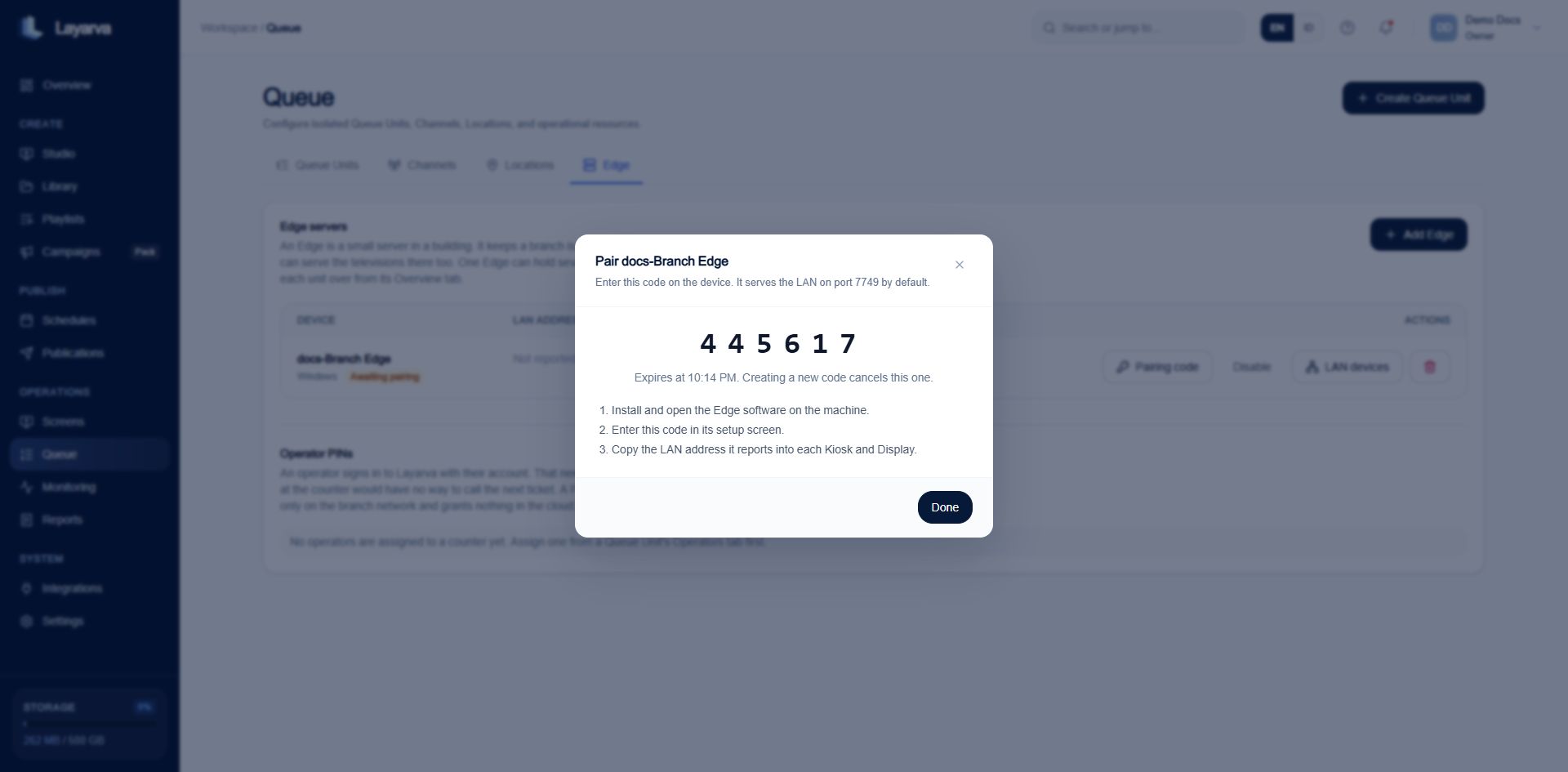
The temporary code is entered on the Edge device; creating another code invalidates the previous one.
Expected result
The Edge is Active, has a last-sync time and LAN address, and can be selected for Screen handover or Queue authority.Troubleshooting
- If the code expires, select Pairing code to generate a new one.
- If the device never reports a LAN address, verify its interface selection and outbound connection.
- If branch devices cannot connect, allow local TCP traffic to port
7749and verify they are on a routable LAN/VLAN. - Do not hand over production operations until the device has synchronized and its clock is trusted.