

What you’ll accomplish
You will choose a Cloud, Edge, or offline Screen mode and configure its workspace record.Prerequisites
- Screen pairing or management permission.
- The device workflow appropriate for your deployment.
Choose how the Screen receives content
Select Screens → Pair Screen to open the add-Screen workflow. The first decision is the delivery mode: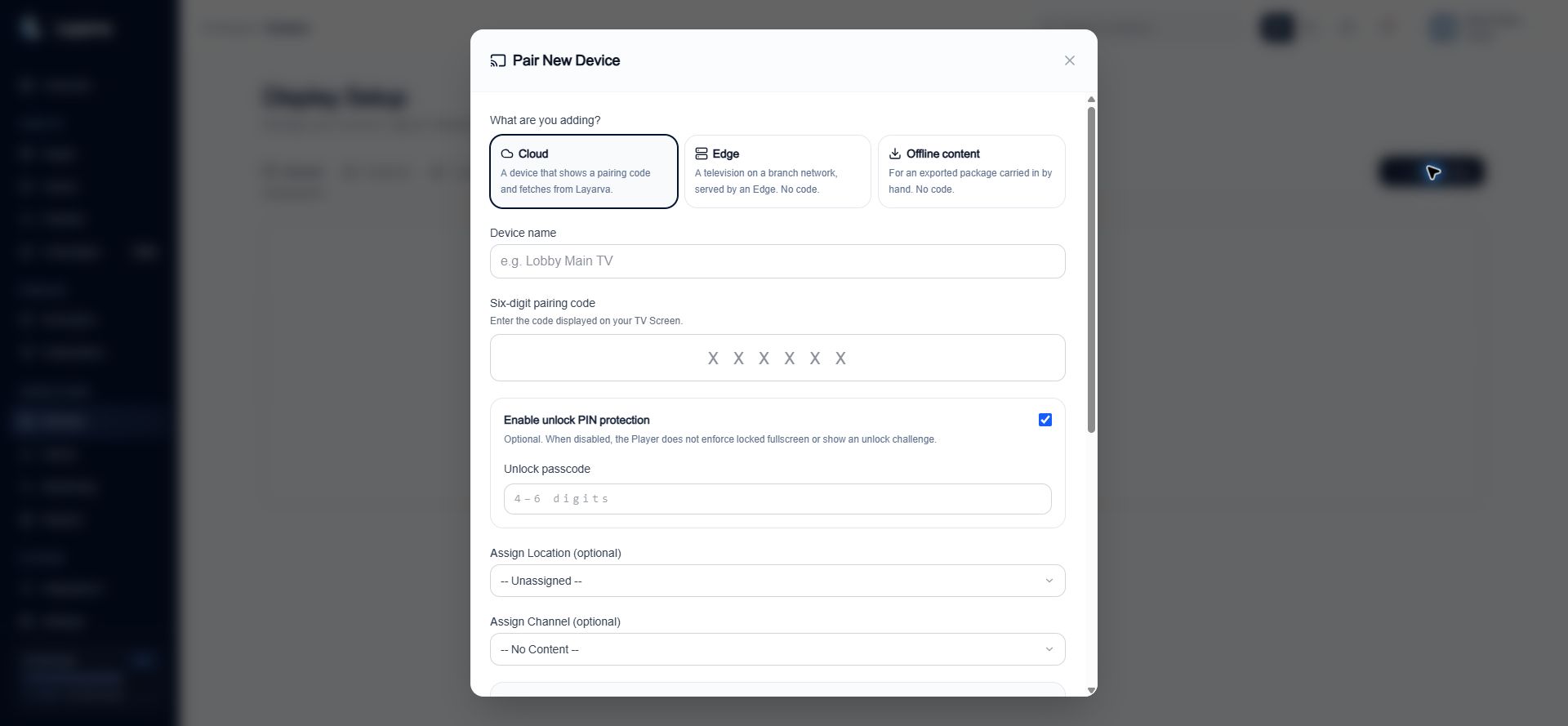
The same Screen form creates Cloud, Edge, and Offline content targets, but only Cloud asks for a pairing code.
Steps
- Open Screens and select Pair Screen.
- Choose Cloud, Edge, or Offline content.
- Enter a device name that identifies its physical purpose or position.
-
Complete the mode-specific configuration:
- Cloud requires a six-digit pairing code.
- Edge requires a paired and entitled Layarva Edge environment.
- Offline content requires a Channel so the exported package has an immutable playback target.
- Configure resolution and content fit.
- Optionally assign the Screen to a Location and Channel.
- Select Pair Device for Cloud or Create Screen for Edge and Offline content.
Expected result
The Screen appears in the Devices list with its current connectivity, playback, assignment, and health state.Important notes
- Queue content is online-required and is not included in offline content packages.
- Edge availability depends on the workspace plan and Edge-device entitlement.
- Content-fit applies to the complete Design, image, or video.
- Creating an Edge or Offline Screen creates a valid Screen record without a device token. Its status can remain offline until its delivery workflow is completed.