Supported Android hardware
The current stable Android Player is 0.40.0 (build 40). Android Player requirements are independent from the plain-browser Cloud Player requirements.Choose the APK for the processor
Check the box before buying more
From the Android Player welcome screen, select Check this device. The native check reads Android/API level, manufacturer and board, processor ABI, kernel-reported memory, free storage, GPU and texture ceiling, browser engine, and actual WebGL behavior.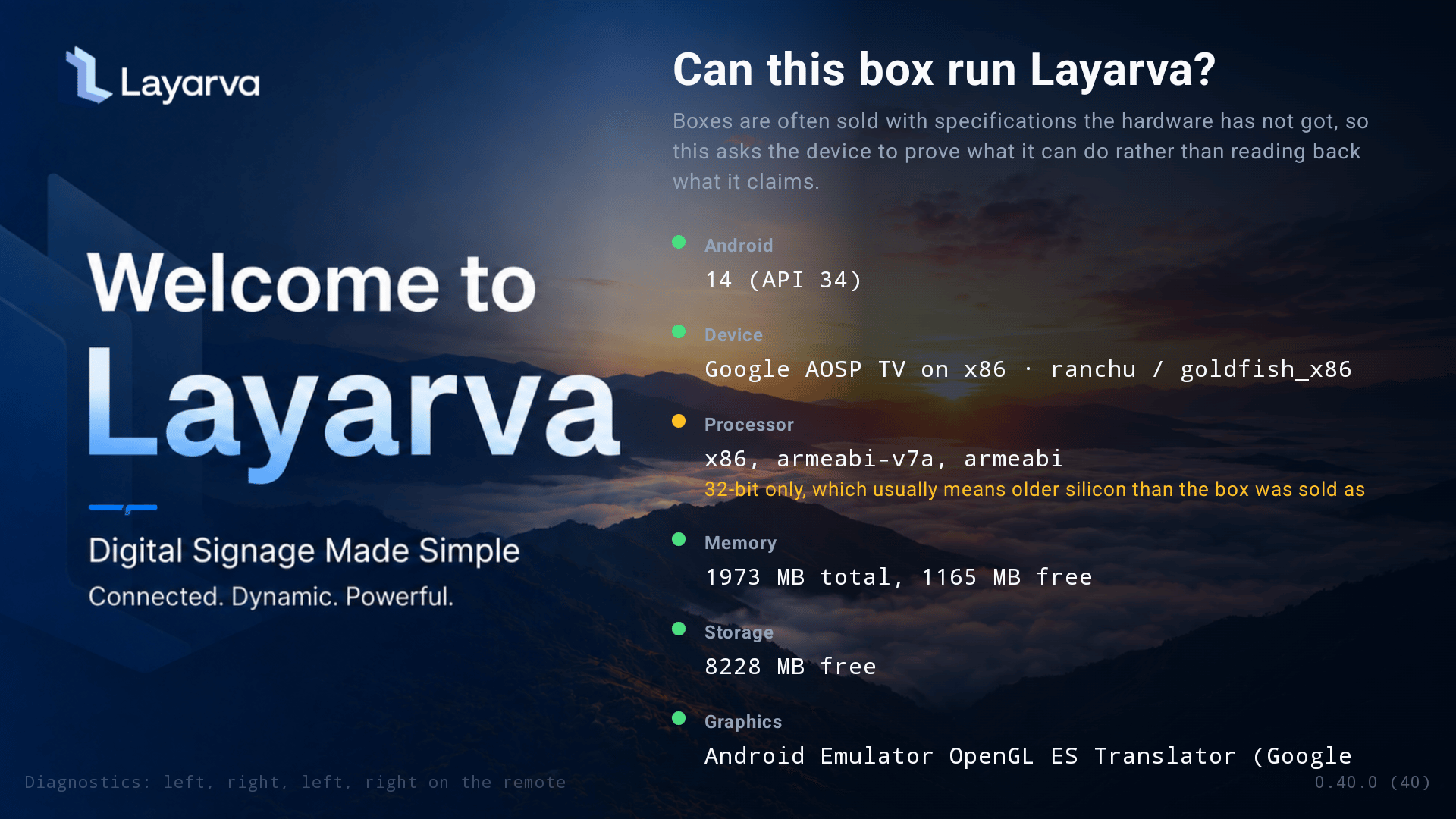
The Android check measures the device rather than trusting the version and memory printed on a TV-box listing.
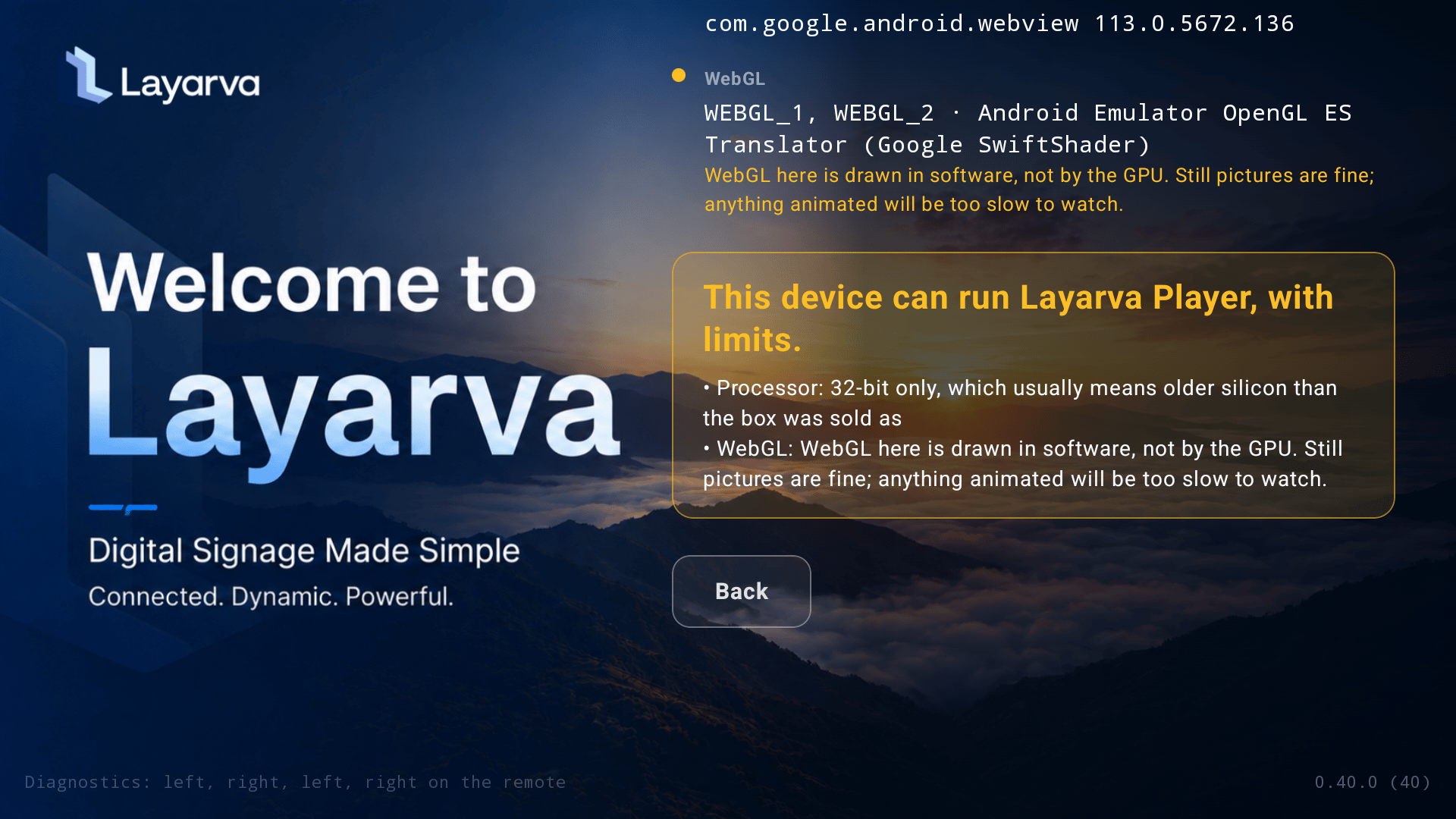
This emulator is intentionally an example of Supported with limits: it is 32-bit and draws WebGL through SwiftShader software rendering.
Choose where content comes from
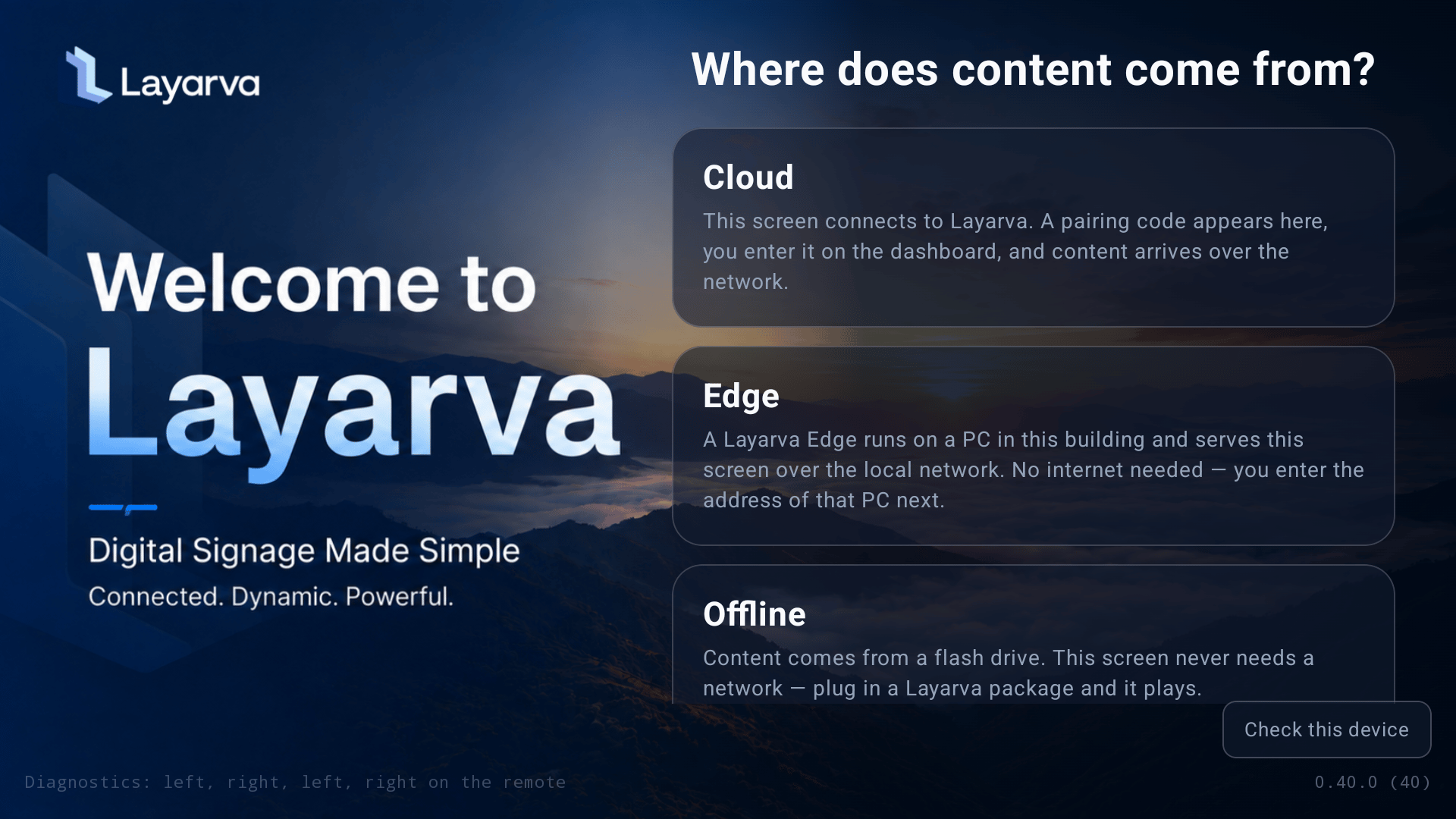
Android Player offers Cloud, Edge, and Offline sources from the first-run welcome screen.
Pair in Cloud mode
- Select Cloud.
- Keep the six-digit code visible.
- In Layarva, open Screens → Pair Screen, choose Cloud, and enter the code.
- Configure the Screen name, Channel, Location, output, fit, and optional unlock PIN.
- Complete pairing and wait for the first Publication.
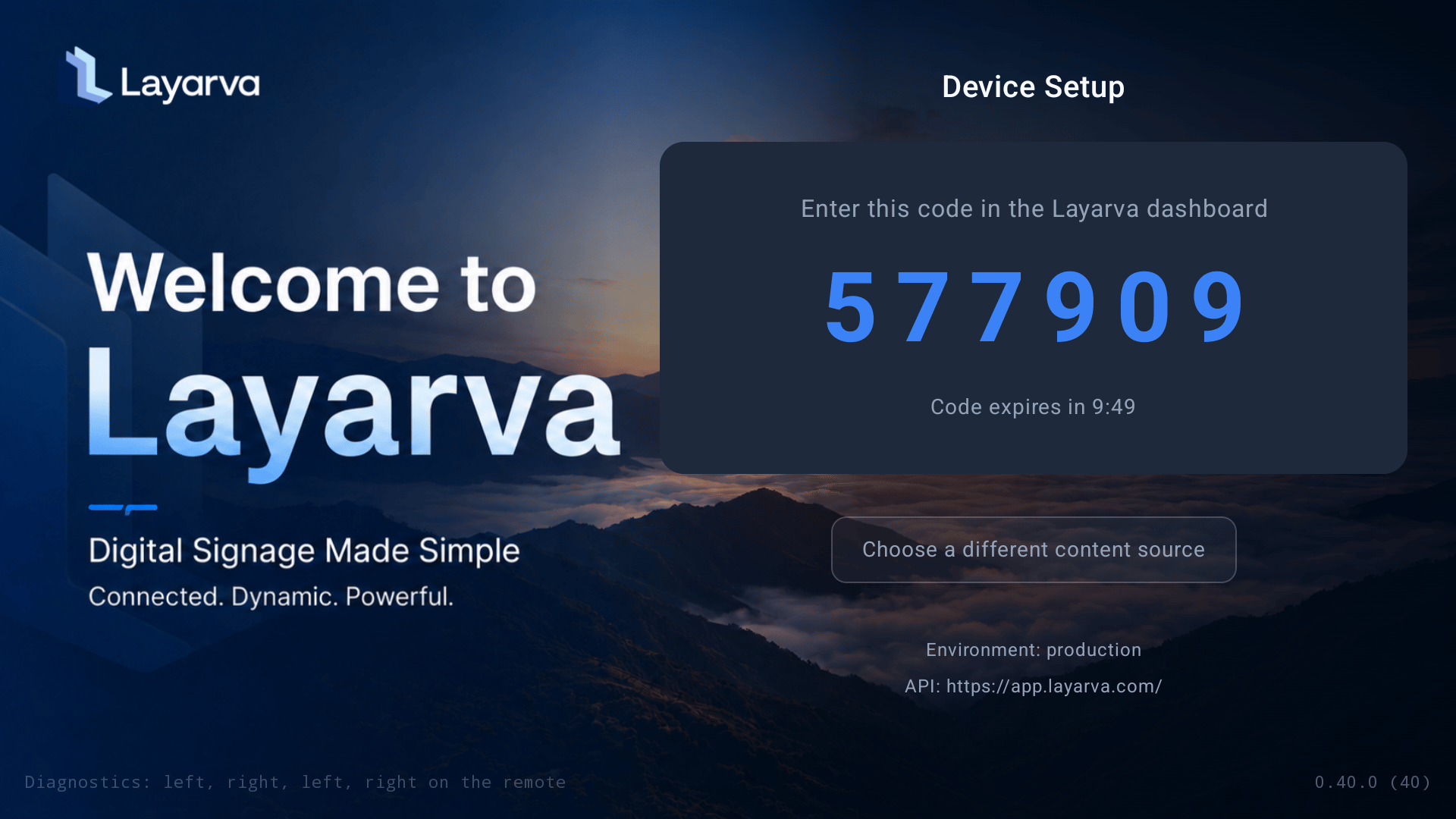
The Android Player displays the pairing code, expiration countdown, environment, and Platform API destination.
Import Offline content
Copy the signed.lvapkg to the root of a flash drive and insert it into the Player. In Offline mode, the Player detects the package, verifies its signature, manifest, files, target, renderer compatibility, and lease before installing anything.
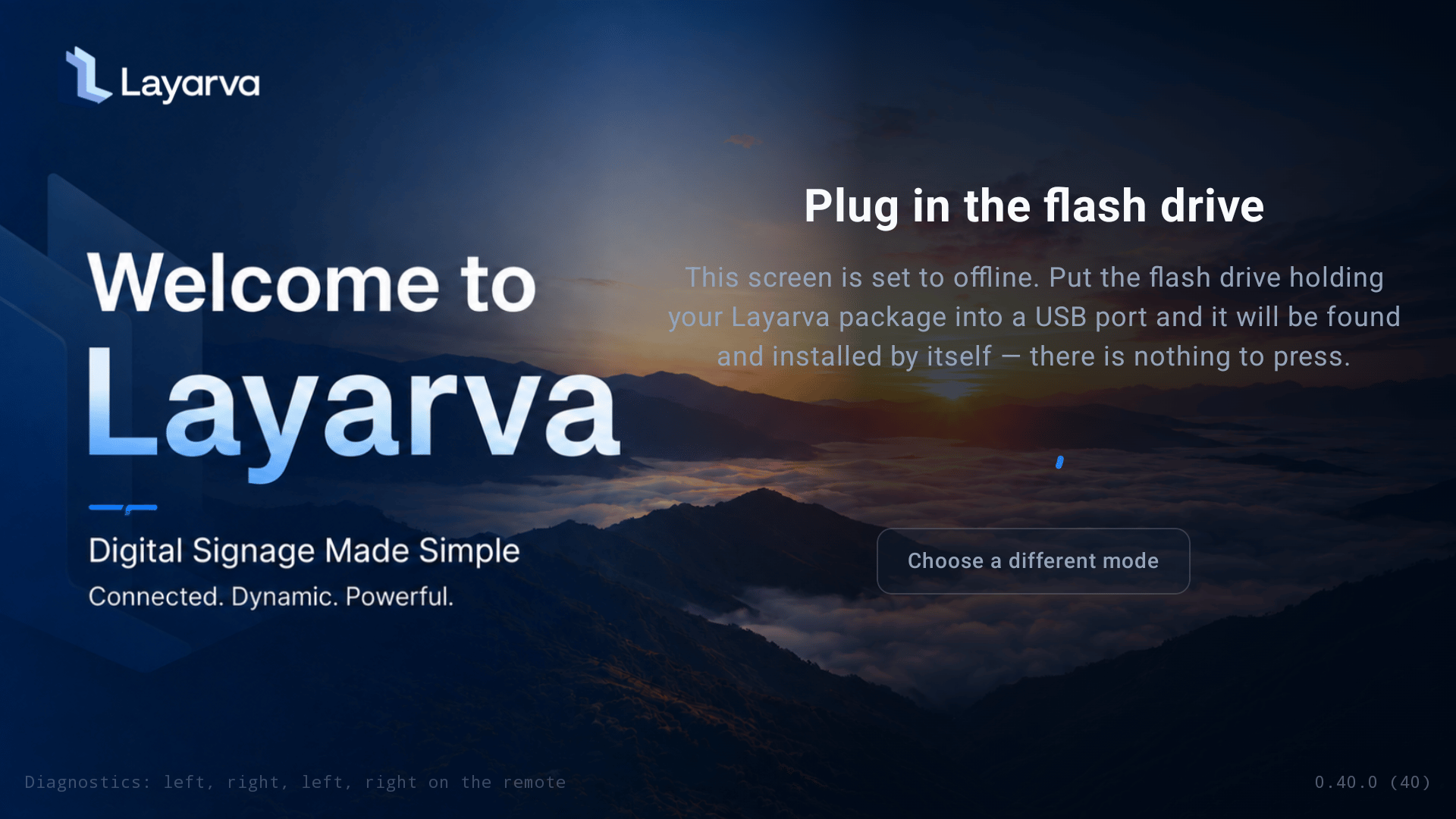
Offline mode waits for a signed Layarva package and discovers it automatically from attached storage.
Open diagnostics
Use any supported method:- Press Left, Right, Left, Right on the remote, with no more than 1.5 seconds between presses.
- Press the remote’s Info or Settings button.
- On a touch device, press and hold the lower-right corner.
Identify the installation
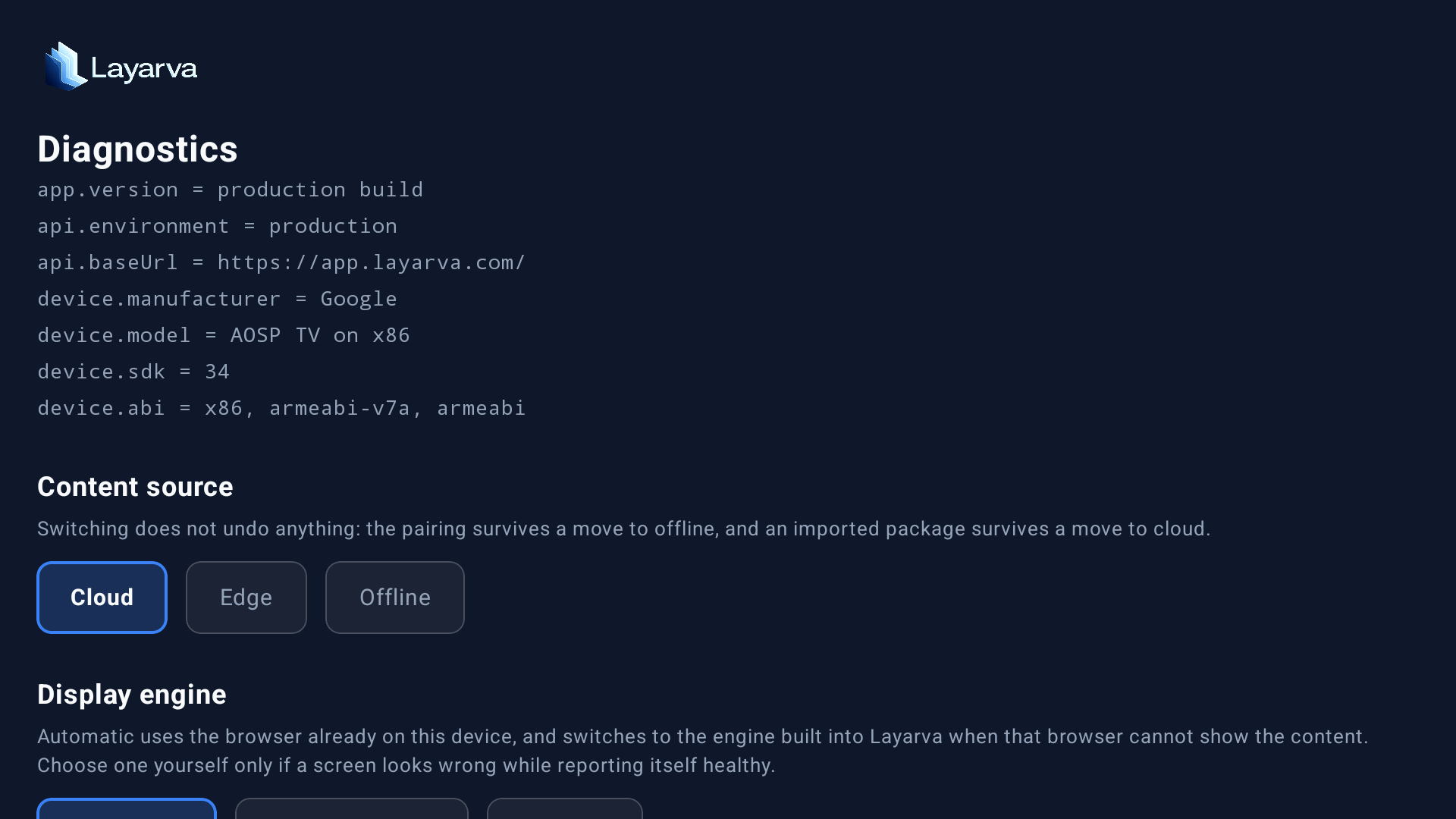
Diagnostics identifies the Player build, API environment, Platform URL, Android device, SDK, and ABI.
app.version, api.environment, api.baseUrl, manufacturer, model, SDK, and ABI to support. These fields establish which build, server, and APK architecture are actually running.
Display engine and render resolution
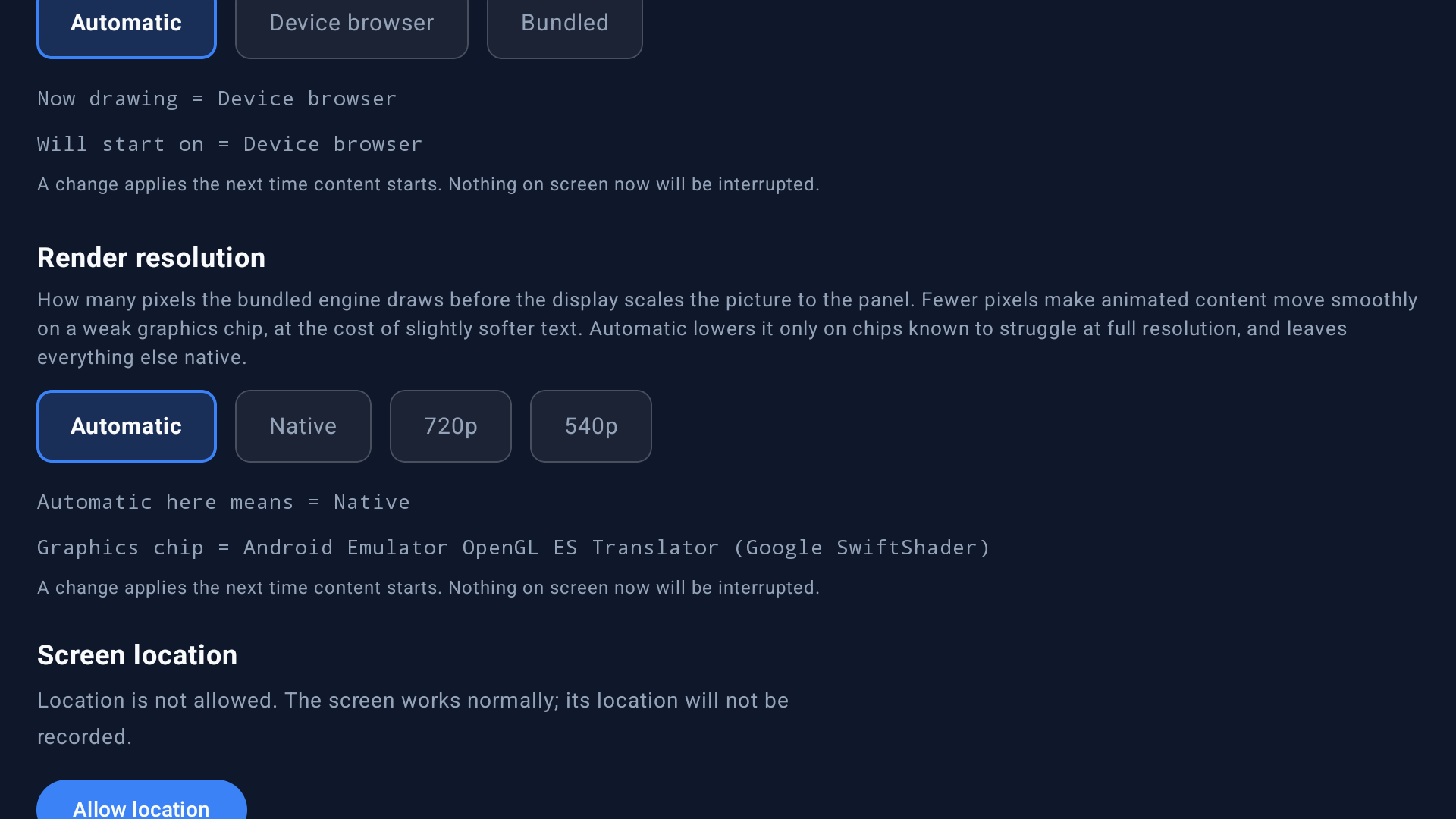
Automatic engine selection and render resolution can be overridden when a specific box displays incorrectly or struggles with animation.
- Automatic uses the device browser and can move to the bundled engine when needed. Use this for normal operation.
- Device browser forces the Android WebView.
- Bundled forces the engine included in the APK.
- Native render resolution produces the sharpest image.
- 720p or 540p reduces shader load on weak GPUs such as Mali-400/450/470.
Location, logs, release, and packages
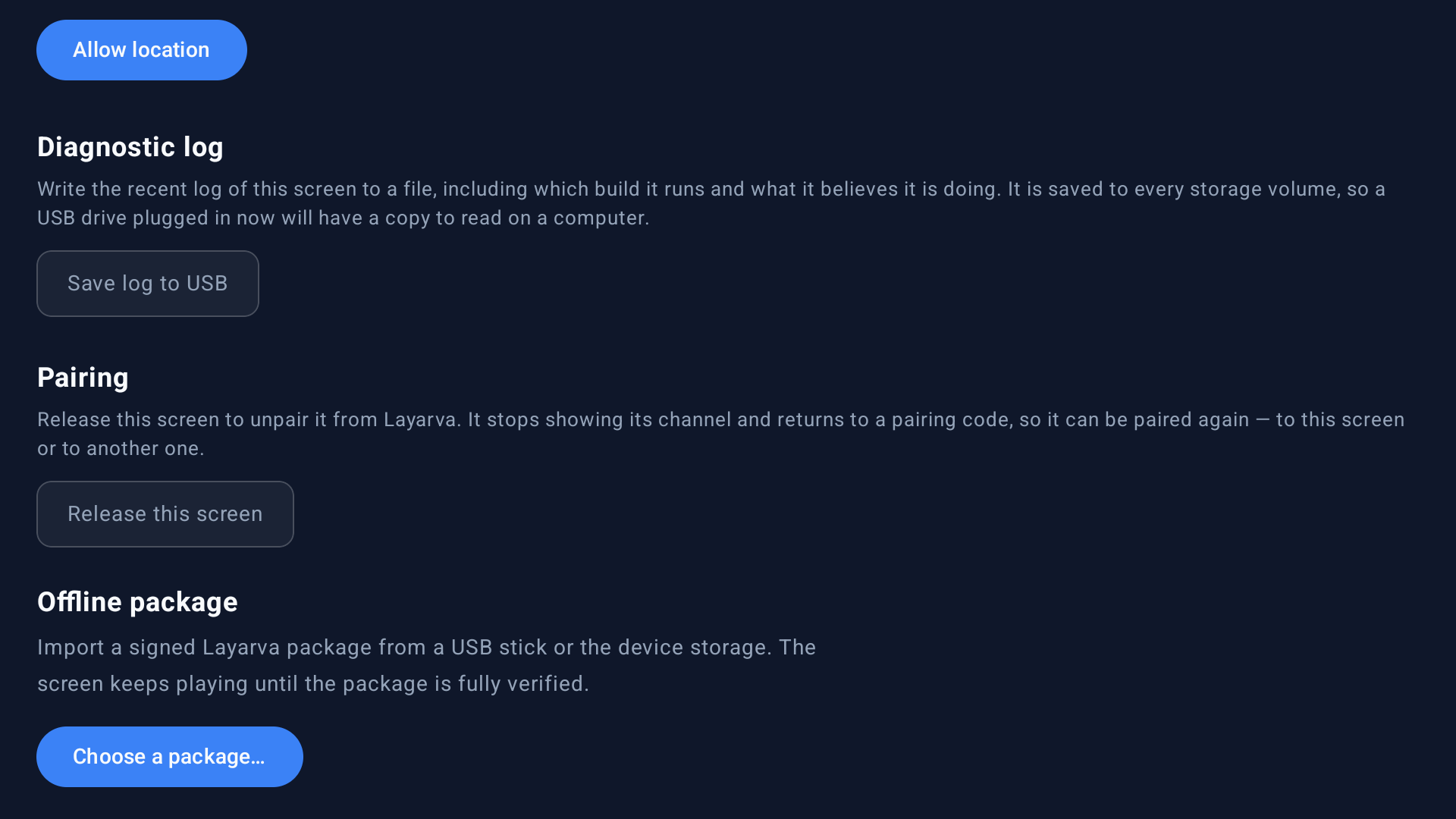
Diagnostics can grant optional location access, export logs, release pairing, and choose a signed Offline package.
- Allow location is optional. Denial does not stop playback.
- Save log to USB writes the recent build and playback diagnostics to attached storage.
- Release this screen removes the Cloud pairing and returns to a pairing code.
- Choose a package scans attached and device storage for
.lvapkgfiles.