> ## Documentation Index
> Fetch the complete documentation index at: https://docs.layarva.com/llms.txt
> Use this file to discover all available pages before exploring further.
# Navigate Layarva Studio
> Choose the right starting point for a new Design.
## What you'll accomplish
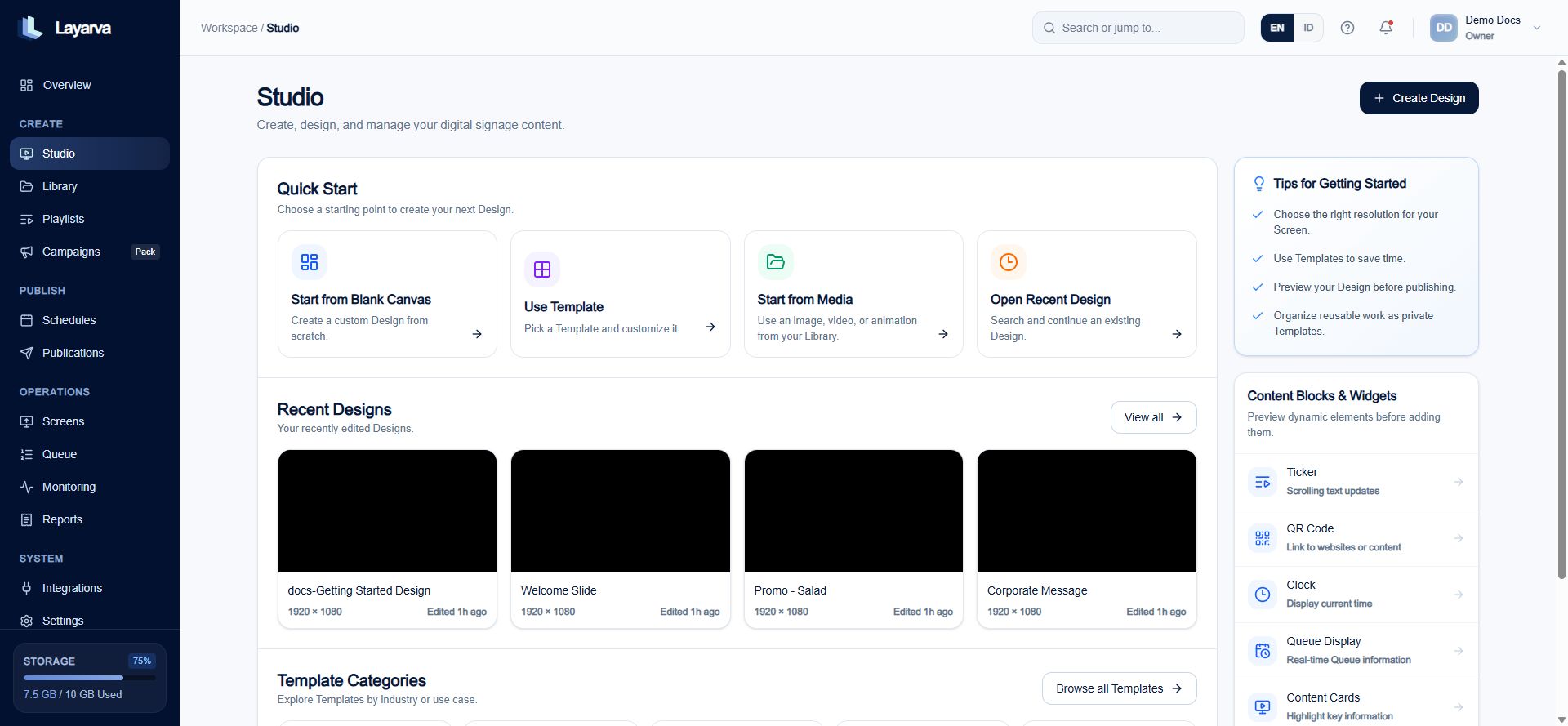
You will identify the four Studio starting points and open the appropriate content workflow.
## Prerequisites
* Workspace access with permission to view Studio.
## Steps
1. Select **Studio** from the sidebar.
2. Choose one of the Quick Start options:
* **Start from Blank Canvas** for a new custom Design.
* **Use Template** to customize an existing Template.
* **Start from Media** to use an image, video, or animation from the Library.
* **Open Recent Design** to continue existing work.
3. Review Recent Designs, Template Categories, or available content blocks and Widgets.
 ## Expected result
You enter the workflow that matches the content you want to create.
## Important notes
* Library stores reusable content, Studio composes it, and Playlist sequences it.
* Choose a Canvas resolution compatible with the target Screen orientation.
## Troubleshooting
If a recent Design is missing, open **Library** and select the Studio content tab.
## Related guides
* [Create a Design](/studio/canvas)
* [Create a Playlist](/studio/playlists)
## Expected result
You enter the workflow that matches the content you want to create.
## Important notes
* Library stores reusable content, Studio composes it, and Playlist sequences it.
* Choose a Canvas resolution compatible with the target Screen orientation.
## Troubleshooting
If a recent Design is missing, open **Library** and select the Studio content tab.
## Related guides
* [Create a Design](/studio/canvas)
* [Create a Playlist](/studio/playlists)