> ## Documentation Index
> Fetch the complete documentation index at: https://docs.layarva.com/llms.txt
> Use this file to discover all available pages before exploring further.
# Pair a Screen
> Pair a Cloud Player using its temporary six-digit code.
## What you'll accomplish
You will claim a temporary Cloud Player pairing session and add the resulting Screen to your workspace.
## Prerequisites
* A supported Player displaying a six-digit pairing code.
* Screen pairing permission in the target workspace.
## Steps
1. Start the Layarva Player on the display.
2. Keep the pairing-code screen visible.
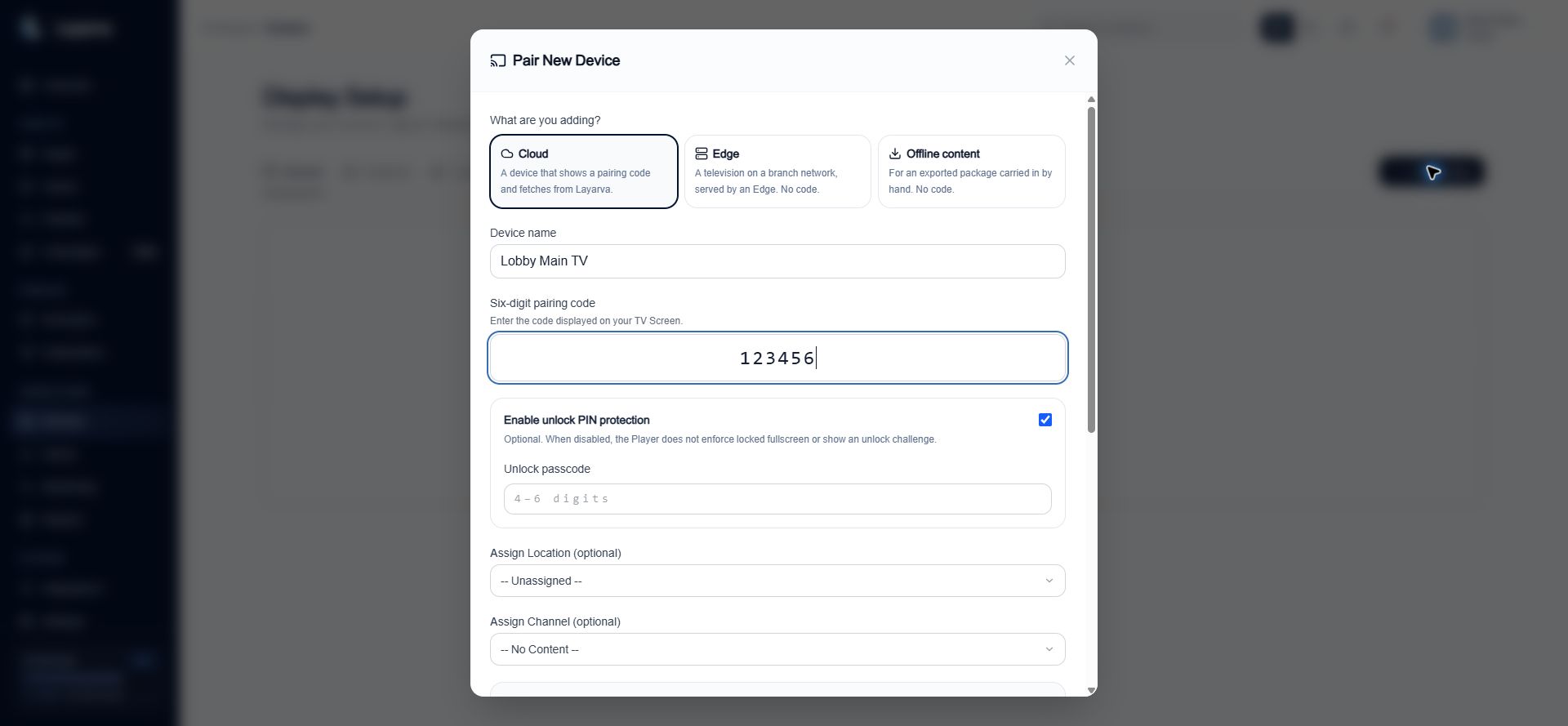
3. In the Layarva web application, open **Screens** and select **Pair Screen**.
4. Select **Cloud**.
5. Enter the device name and six-digit code.
6. Configure optional unlock protection, assignment, resolution, and content fit.
7. Select **Pair Device**.
 ## How pairing works
1. The Player requests a temporary pairing session and displays a six-digit code.
2. The administrator enters that code in the workspace.
3. Layarva verifies that the code is pending, unexpired, and within the workspace Screen quota.
4. The Player's permanent device token is attached to the new Screen record.
5. The Player begins following the Screen's assigned Channel.
The pairing code and optional unlock PIN are different credentials. The pairing code is temporary and claims a device; the 4–6 digit unlock PIN protects the paired Player from leaving locked playback.
## Expected result
The Player leaves its pairing screen and the new Screen appears in the workspace Devices list.
## Important notes
* Pairing codes are temporary credentials. Do not share or screenshot a live code.
* A code can fail when it is invalid, expired, or already claimed.
* Unlock protection is optional but recommended for unattended public displays.
* Edge and Offline content Screens are created without this six-digit code. They use their own delivery workflows.
## Troubleshooting
* Restart the pairing flow on the Player to generate a new code.
* Confirm that the browser and Player can reach Layarva.
* Do not reuse a code from another device or workspace.
## Related guides
* [Add a Screen](/screens/add-screen)
* [Publish Your First Content](/getting-started/publish-first-content)
## How pairing works
1. The Player requests a temporary pairing session and displays a six-digit code.
2. The administrator enters that code in the workspace.
3. Layarva verifies that the code is pending, unexpired, and within the workspace Screen quota.
4. The Player's permanent device token is attached to the new Screen record.
5. The Player begins following the Screen's assigned Channel.
The pairing code and optional unlock PIN are different credentials. The pairing code is temporary and claims a device; the 4–6 digit unlock PIN protects the paired Player from leaving locked playback.
## Expected result
The Player leaves its pairing screen and the new Screen appears in the workspace Devices list.
## Important notes
* Pairing codes are temporary credentials. Do not share or screenshot a live code.
* A code can fail when it is invalid, expired, or already claimed.
* Unlock protection is optional but recommended for unattended public displays.
* Edge and Offline content Screens are created without this six-digit code. They use their own delivery workflows.
## Troubleshooting
* Restart the pairing flow on the Player to generate a new code.
* Confirm that the browser and Player can reach Layarva.
* Do not reuse a code from another device or workspace.
## Related guides
* [Add a Screen](/screens/add-screen)
* [Publish Your First Content](/getting-started/publish-first-content)