> ## Documentation Index
> Fetch the complete documentation index at: https://docs.layarva.com/llms.txt
> Use this file to discover all available pages before exploring further.
# Manage Screens, Channels, and Locations
> Understand the display entities managed from Screen setup.
## What you'll accomplish
You will understand the display setup area and how Screens, Channels, and Locations relate.
## Prerequisites
* Workspace access with permission to view Screens.
## Steps
1. Select **Screens** in the sidebar.
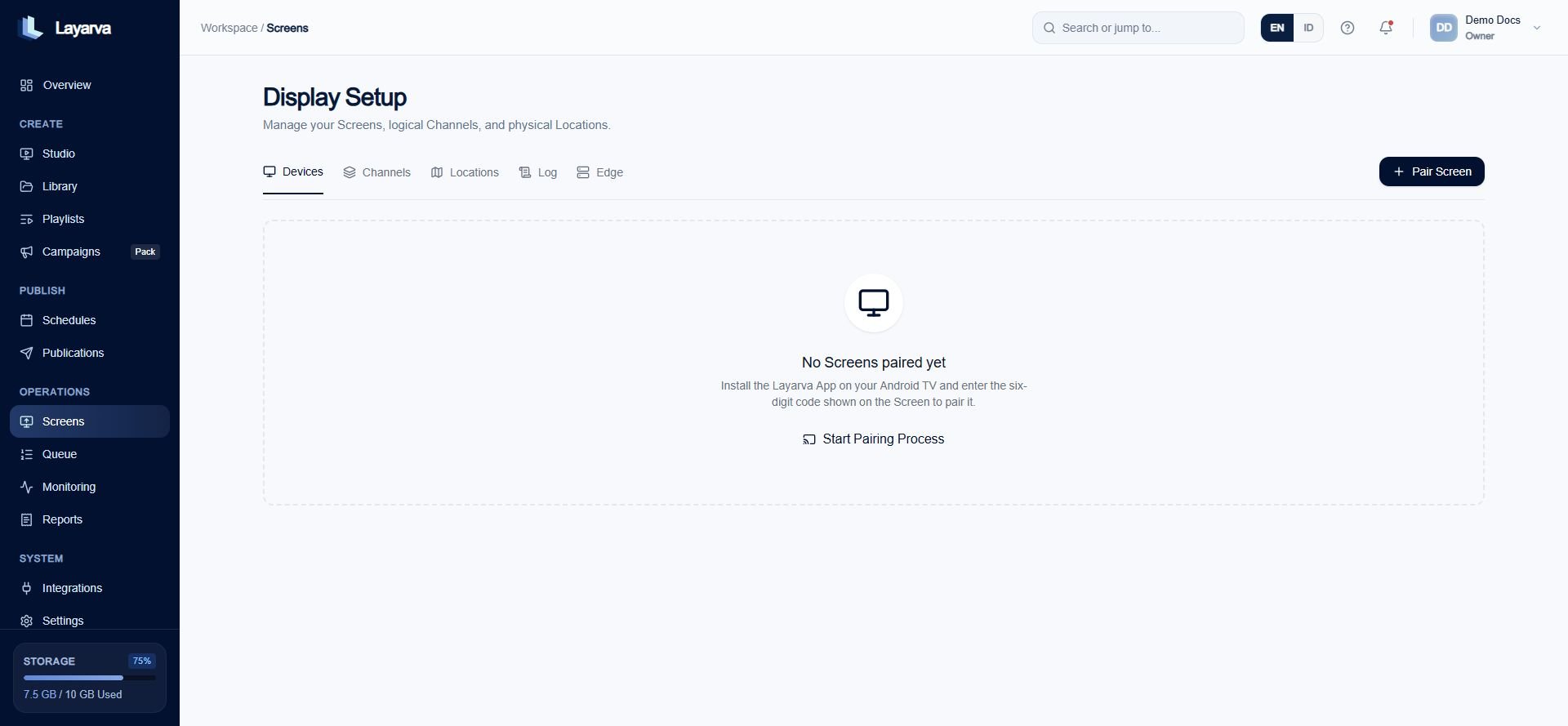
2. Use the display setup tabs:
* **Devices** manages paired Screens.
* **Channels** manages logical content targets.
* **Locations** organizes physical sites.
* **Log** shows display lifecycle events.
* **Edge** manages eligible Edge devices and branch playback.
 ## Expected result
You can choose whether to pair a device, create a Channel, or organize a Location.
## Important notes
* A Screen is a device record.
* A Channel is a logical playback target.
* A Location is a physical or operational grouping.
## Troubleshooting
If a Screen is paired but shows no content, verify that it is assigned to the intended Channel.
## Related guides
* [Add a Screen](/screens/add-screen)
* [Pair a Screen](/screens/pairing)
* [Understand Publishing](/studio/publishing)
## Expected result
You can choose whether to pair a device, create a Channel, or organize a Location.
## Important notes
* A Screen is a device record.
* A Channel is a logical playback target.
* A Location is a physical or operational grouping.
## Troubleshooting
If a Screen is paired but shows no content, verify that it is assigned to the intended Channel.
## Related guides
* [Add a Screen](/screens/add-screen)
* [Pair a Screen](/screens/pairing)
* [Understand Publishing](/studio/publishing)