> ## Documentation Index
> Fetch the complete documentation index at: https://docs.layarva.com/llms.txt
> Use this file to discover all available pages before exploring further.
# Generate Offline Content
> Verify offline eligibility, create an Offline Screen, export a signed package, and understand its playback lease.
## Recognize offline-compatible content
Layarva shows exactly one availability badge on content:
| Badge | Meaning |
| --------------------- | -------------------------------------------------------------------------------------- |
| **Offline Supported** | Every enabled item can be packaged with the resources or data snapshot it needs. |
| **Internet Required** | At least one enabled item needs live connectivity and prevents a fully offline export. |
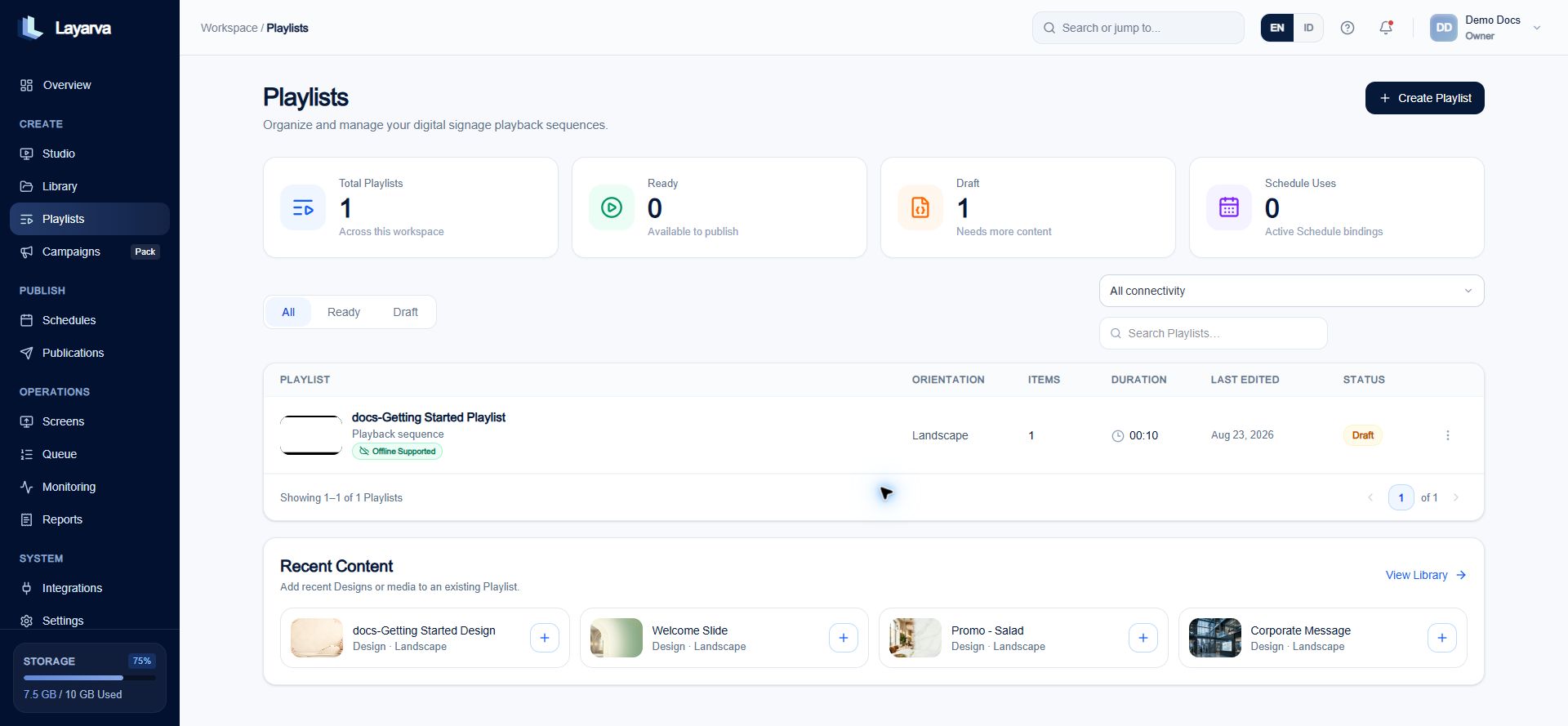 The strictest item determines the Playlist result: one YouTube Live, remote web frame, Queue live display, or other live-only dependency makes the complete Playlist **Internet Required**.
### Badge, node mode, and Library tag are different
Layarva exposes two customer-facing badges, but a Design node can use three internal availability modes:
| Node mode | Exportable? | Customer-facing badge |
| ------------------- | ------------------------------------------ | --------------------- |
| **Offline Ready** | Yes | Offline Supported |
| **Hybrid** | Yes; embedded data can refresh when online | Offline Supported |
| **Online Required** | No | Internet Required |
A Library tag is only a free-form search label. Adding an `offline` tag does not make content exportable.
### Snapshot-capable and live-only dependencies
| Snapshot-capable | Always live-only |
| ---------------- | ------------------------- |
| Dynamic data | YouTube |
| Prayer times | Remote web frame |
| Weather | Online-only visual effect |
| | Queue live state |
Snapshot-capable content must embed a usable snapshot before export. Refreshing it later improves the data but is never required to start playback.
## Prepare the content
1. Build a Playlist using only **Offline Supported** items.
2. Mark the Playlist as **Ready** to create an immutable version.
3. Set that exact Ready version as a Channel's Default Playlist or publish it to the Channel.
4. Confirm that the resulting Publication is eligible for offline export.
## Create an Offline Screen
1. Open **Screens → Pair Screen**.
2. Select **Offline content**.
3. Enter the Screen name.
4. Optionally assign a Location.
5. Assign the prepared Channel. This field is required for an Offline Screen.
6. Configure output resolution and content fit.
7. Select **Create Screen**.
The new Screen has no device token and does not use a pairing code.
## Export the signed package
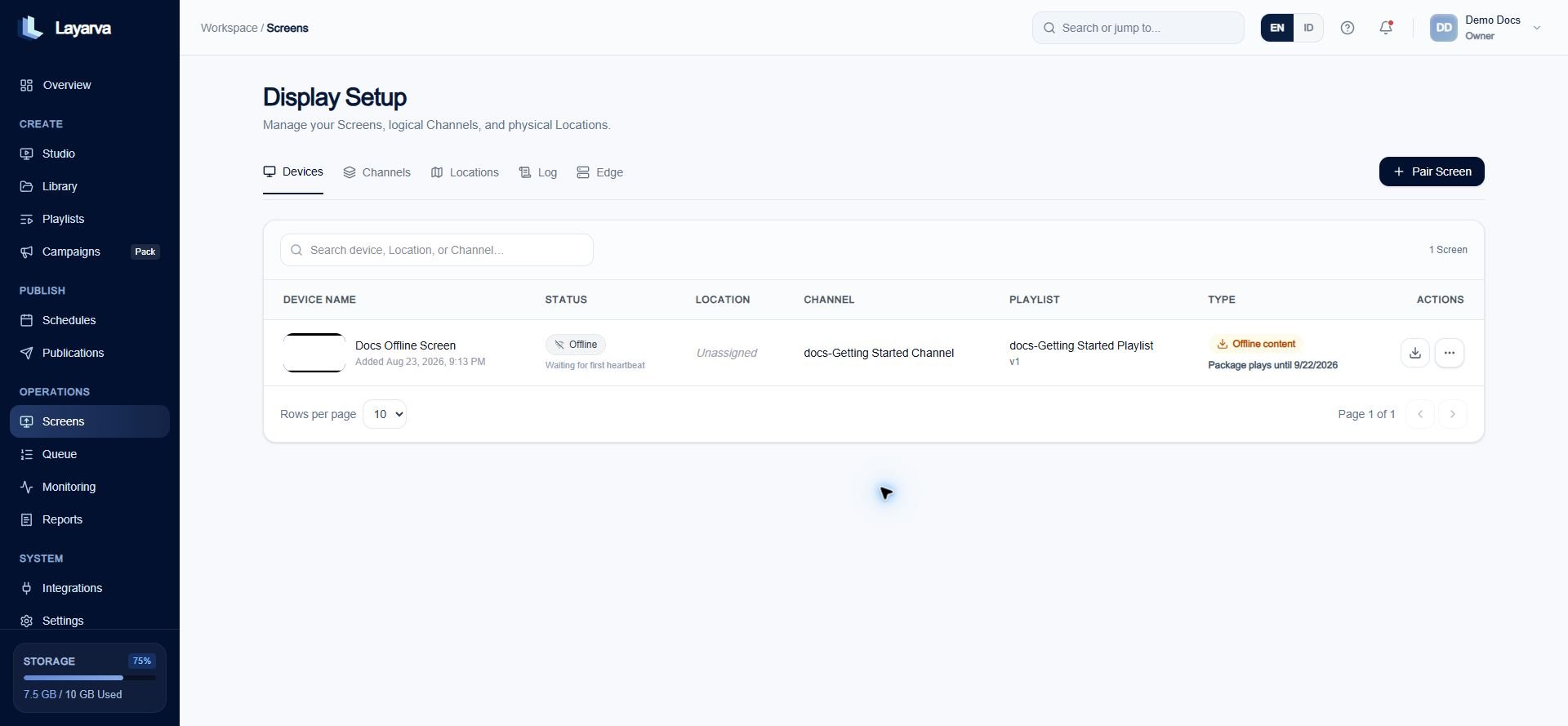
1. Open the Offline Screen's actions.
2. Select **Export offline package**.
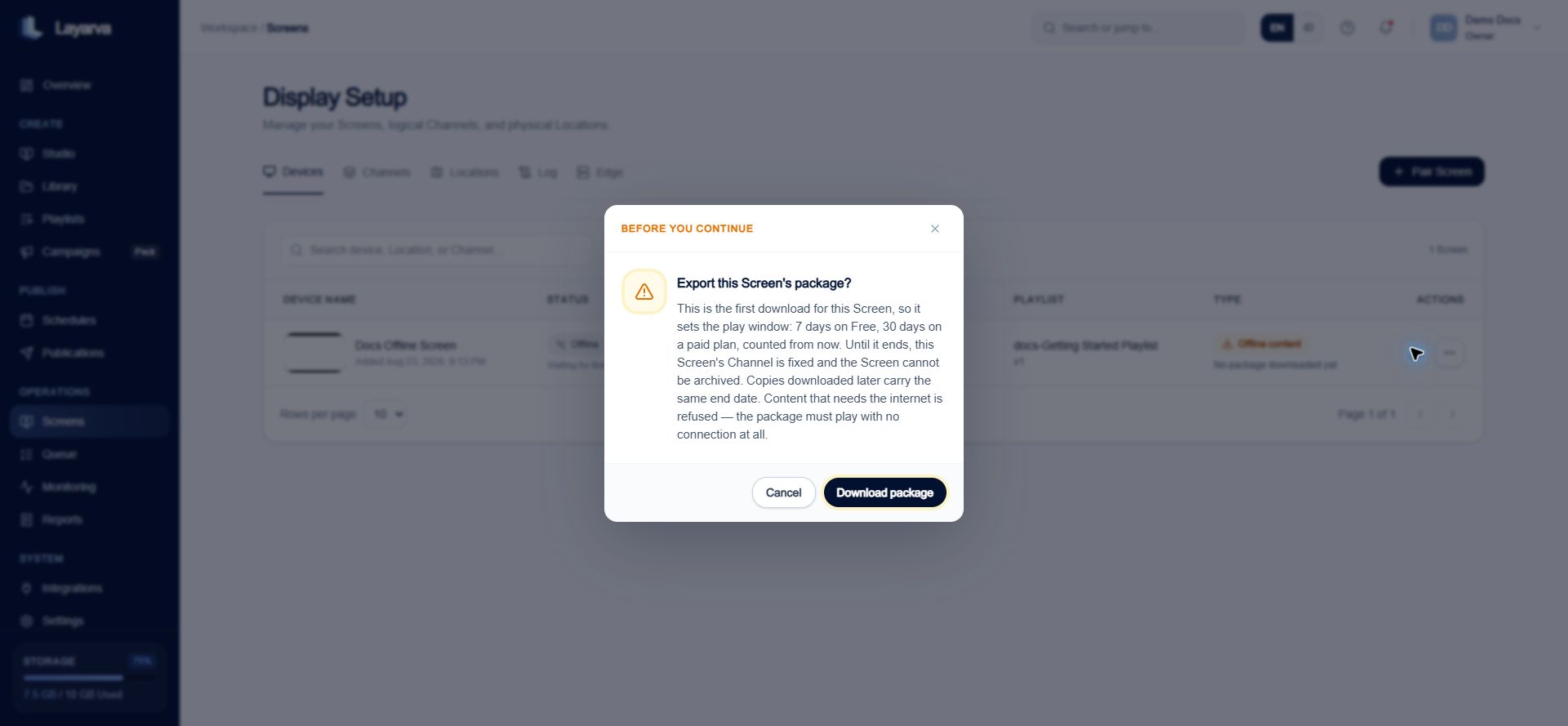
3. Review the confirmation. The first export commits the Screen to its Channel for the package playback window.
4. Confirm the export and save the downloaded `.lvapkg` file.
5. Carry the file to the target device and import it in a supported Layarva Player.
The strictest item determines the Playlist result: one YouTube Live, remote web frame, Queue live display, or other live-only dependency makes the complete Playlist **Internet Required**.
### Badge, node mode, and Library tag are different
Layarva exposes two customer-facing badges, but a Design node can use three internal availability modes:
| Node mode | Exportable? | Customer-facing badge |
| ------------------- | ------------------------------------------ | --------------------- |
| **Offline Ready** | Yes | Offline Supported |
| **Hybrid** | Yes; embedded data can refresh when online | Offline Supported |
| **Online Required** | No | Internet Required |
A Library tag is only a free-form search label. Adding an `offline` tag does not make content exportable.
### Snapshot-capable and live-only dependencies
| Snapshot-capable | Always live-only |
| ---------------- | ------------------------- |
| Dynamic data | YouTube |
| Prayer times | Remote web frame |
| Weather | Online-only visual effect |
| | Queue live state |
Snapshot-capable content must embed a usable snapshot before export. Refreshing it later improves the data but is never required to start playback.
## Prepare the content
1. Build a Playlist using only **Offline Supported** items.
2. Mark the Playlist as **Ready** to create an immutable version.
3. Set that exact Ready version as a Channel's Default Playlist or publish it to the Channel.
4. Confirm that the resulting Publication is eligible for offline export.
## Create an Offline Screen
1. Open **Screens → Pair Screen**.
2. Select **Offline content**.
3. Enter the Screen name.
4. Optionally assign a Location.
5. Assign the prepared Channel. This field is required for an Offline Screen.
6. Configure output resolution and content fit.
7. Select **Create Screen**.
The new Screen has no device token and does not use a pairing code.
## Export the signed package
1. Open the Offline Screen's actions.
2. Select **Export offline package**.
3. Review the confirmation. The first export commits the Screen to its Channel for the package playback window.
4. Confirm the export and save the downloaded `.lvapkg` file.
5. Carry the file to the target device and import it in a supported Layarva Player.
 ## What the package contains
* An immutable Publication manifest.
* Every referenced resource with its checksum and byte size.
* Embedded snapshots for supported refreshable data.
* A signed descriptor and a playback lease scoped to the workspace, Channel, and optionally the Screen.
## Offline eligibility checks
Export succeeds only when all four groups pass:
1. No active item is **Online Required**.
2. Every snapshot-capable dependency contains an embedded snapshot and uses a compatible offline mode.
3. Every referenced resource exists exactly once in the inventory, with matching checksum and byte size.
4. The inventory contains no unused resource.
This rule is not “no online dependency.” Hybrid data is allowed when the package already satisfies it locally.
## Playback lease and audience
The Player validates the lease before activation:
| Check | Example failure |
| -------------------------------------------------------- | ---------------------------------------------- |
| Complete Player identity | `IDENTITY_INCOMPLETE` |
| Workspace matches | `WORKSPACE_MISMATCH` |
| Channel matches | `CHANNEL_MISMATCH` |
| Screen matches for Screen-scoped packages | `SCREEN_MISMATCH` |
| Trusted server-time anchor is not before issue time | Activation rejected |
| Manifest, checksum, schema, and resource paths are valid | `PACKAGE_*_INVALID` or `RESOURCE_PATH_INVALID` |
Resource paths must remain below `resources/`; traversal with `..` and duplicate paths are rejected.
## Lease duration and locking
* Free offline leases are capped at seven days.
* Subscription offline leases are capped at thirty days.
* A paid-period end can shorten that window; an expired period rejects export.
* A yearly subscription still produces a maximum thirty-day package.
* Free workspaces can deliver one offline lease; paid entitlements normally allow repeated delivery.
The Channel lock is derived from the earliest issued lease, including a revoked lease. Re-downloading copies the existing playback window and does not extend it.
Premium and Queue Only currently have a verified entitlement-name mismatch in the Offline/Edge entitlement path. Confirm the resolved entitlement shown by the product or contact support before promising package duration or quantity for those two plans.
## Trusted time and refresh behavior
The Player tolerates at most five minutes of clock rollback. While connectivity exists, embedded data can refresh every five minutes. An Offline Player retries its heartbeat path every hour, but connectivity never changes whether an otherwise valid package is allowed to start.
The Player validates the signature, resource paths, checksums, audience, and trusted time before playback. Re-downloading a package copies the existing lease; it does not extend the original validity window.
Revoking a package is not a remote kill switch for a device that never reconnects. The local copy stops according to its signed lease. Always review the displayed **plays until** date.
## Related guides
* [Cloud, Edge, and Offline Delivery](/screens/delivery-modes)
* [Create a Playlist](/studio/playlists)
* [Understand Publishing](/studio/publishing)
## What the package contains
* An immutable Publication manifest.
* Every referenced resource with its checksum and byte size.
* Embedded snapshots for supported refreshable data.
* A signed descriptor and a playback lease scoped to the workspace, Channel, and optionally the Screen.
## Offline eligibility checks
Export succeeds only when all four groups pass:
1. No active item is **Online Required**.
2. Every snapshot-capable dependency contains an embedded snapshot and uses a compatible offline mode.
3. Every referenced resource exists exactly once in the inventory, with matching checksum and byte size.
4. The inventory contains no unused resource.
This rule is not “no online dependency.” Hybrid data is allowed when the package already satisfies it locally.
## Playback lease and audience
The Player validates the lease before activation:
| Check | Example failure |
| -------------------------------------------------------- | ---------------------------------------------- |
| Complete Player identity | `IDENTITY_INCOMPLETE` |
| Workspace matches | `WORKSPACE_MISMATCH` |
| Channel matches | `CHANNEL_MISMATCH` |
| Screen matches for Screen-scoped packages | `SCREEN_MISMATCH` |
| Trusted server-time anchor is not before issue time | Activation rejected |
| Manifest, checksum, schema, and resource paths are valid | `PACKAGE_*_INVALID` or `RESOURCE_PATH_INVALID` |
Resource paths must remain below `resources/`; traversal with `..` and duplicate paths are rejected.
## Lease duration and locking
* Free offline leases are capped at seven days.
* Subscription offline leases are capped at thirty days.
* A paid-period end can shorten that window; an expired period rejects export.
* A yearly subscription still produces a maximum thirty-day package.
* Free workspaces can deliver one offline lease; paid entitlements normally allow repeated delivery.
The Channel lock is derived from the earliest issued lease, including a revoked lease. Re-downloading copies the existing playback window and does not extend it.
Premium and Queue Only currently have a verified entitlement-name mismatch in the Offline/Edge entitlement path. Confirm the resolved entitlement shown by the product or contact support before promising package duration or quantity for those two plans.
## Trusted time and refresh behavior
The Player tolerates at most five minutes of clock rollback. While connectivity exists, embedded data can refresh every five minutes. An Offline Player retries its heartbeat path every hour, but connectivity never changes whether an otherwise valid package is allowed to start.
The Player validates the signature, resource paths, checksums, audience, and trusted time before playback. Re-downloading a package copies the existing lease; it does not extend the original validity window.
Revoking a package is not a remote kill switch for a device that never reconnects. The local copy stops according to its signed lease. Always review the displayed **plays until** date.
## Related guides
* [Cloud, Edge, and Offline Delivery](/screens/delivery-modes)
* [Create a Playlist](/studio/playlists)
* [Understand Publishing](/studio/publishing)