> ## Documentation Index
> Fetch the complete documentation index at: https://docs.layarva.com/llms.txt
> Use this file to discover all available pages before exploring further.
# Secure and Release a Screen
> Configure Screen unlock protection, use the emergency workspace PIN, revoke pairing, and release a device safely.
## What you'll accomplish
You will distinguish pairing from unlock protection and choose the correct recovery action when a Screen is locked or paired to the wrong record.
## Pairing and unlock PINs are separate
* A **pairing code** is a temporary six-digit code used once to bind a Player device to a Screen record.
* A **Screen unlock PIN** is an optional four-to-six-digit secret used to exit locked fullscreen mode or release that device.
* The **workspace emergency PIN** is a six-to-ten-digit Owner/Admin recovery key that can unlock any Screen in that workspace.
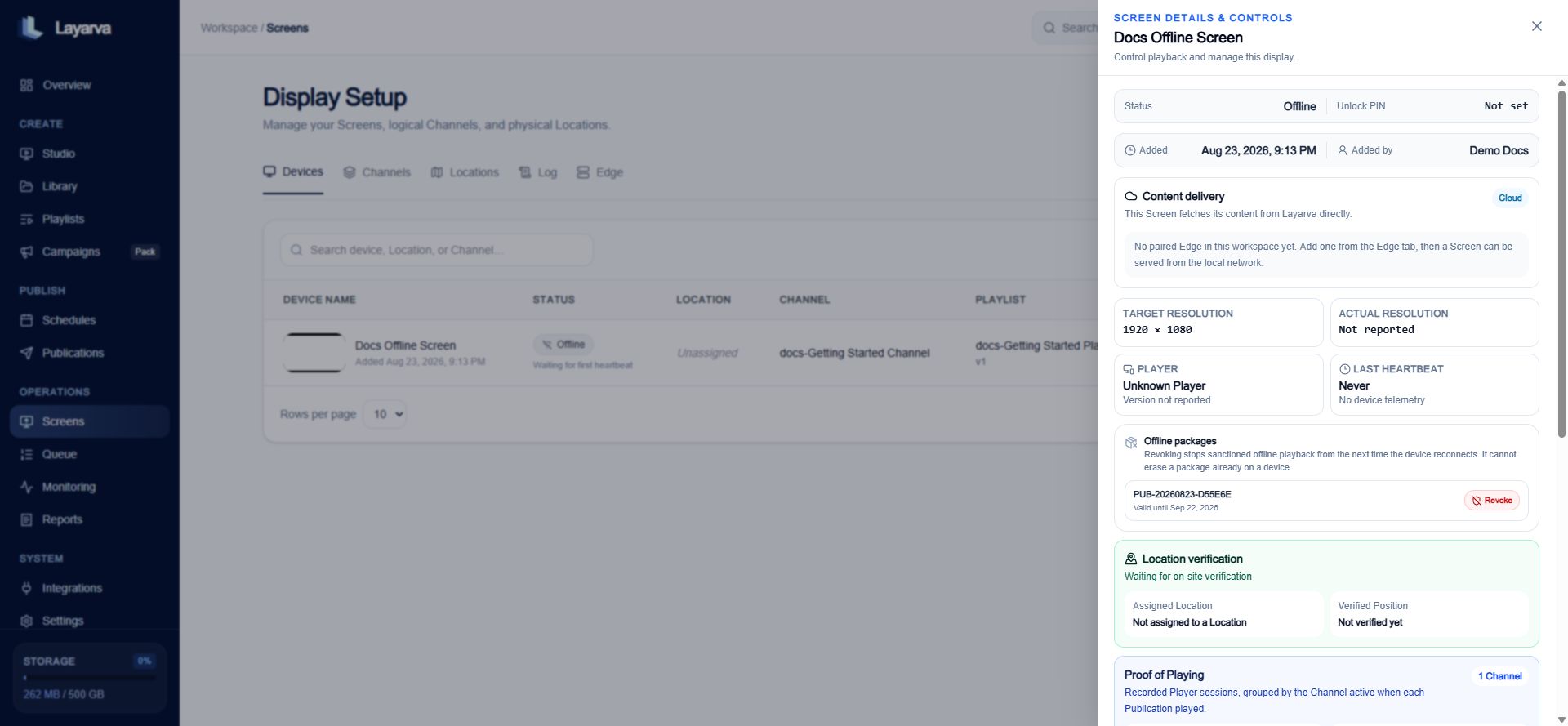
## Configure a Screen unlock PIN
1. Open **Screens → Devices**.
2. Open the Screen's actions.
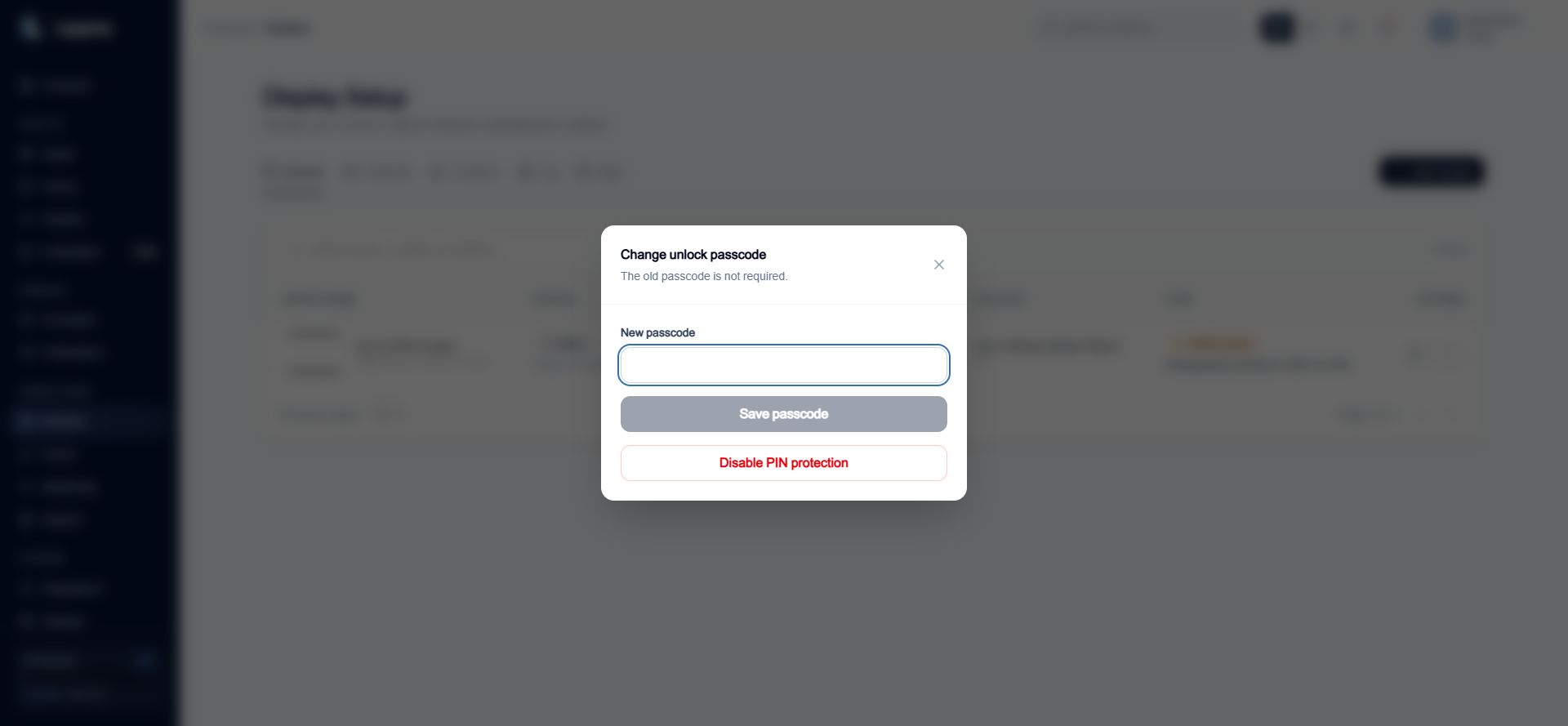
3. Select **Enable unlock PIN** or **Change unlock passcode**.
4. Enter four to six numeric digits.
5. Save the passcode.
Only a mask is returned to the administrative UI. New PINs are stored using a salted PBKDF2-SHA256 hash; older compatible records may still use the legacy verifier.
 ## Set the emergency workspace PIN
1. Open **Settings → General**.
2. Find **Emergency screen PIN**.
3. Enter six to ten numeric digits.
4. Select **Set PIN** and store the recovery value securely.
Every use and every administrative reveal is audited. The PIN is hashed for verification and may also be stored as an AES-256-GCM sealed copy when server-side encryption material is configured.
## Release from the device
Use **Release this screen** on the Player when the physical device is showing the wrong Screen and the operator cannot identify its dashboard record.
* If the Screen has an unlock PIN, the Screen PIN or emergency workspace PIN is required.
* If no PIN is configured, explicit confirmation is sufficient.
* Success removes the device token, deletes the active pairing record, and sets playback to **Unpaired**.
* Releasing an unknown or already released token returns the same success response so Screen identities cannot be enumerated.
PIN and release attempts are limited to five attempts per five minutes for each device token. A successful verification clears the counter.
## Revoke from the dashboard
Dashboard revocation requires `screen.manage` and is appropriate when the Admin already knows which Screen record to change. Archiving a Screen also revokes its pairing while preserving historical reporting.
## Related guides
* [Pair a Screen](/screens/pairing)
* [Cloud, Edge, and Offline Delivery](/screens/delivery-modes)
* [Manage Roles and Permissions](/platform/roles-permissions)
## Set the emergency workspace PIN
1. Open **Settings → General**.
2. Find **Emergency screen PIN**.
3. Enter six to ten numeric digits.
4. Select **Set PIN** and store the recovery value securely.
Every use and every administrative reveal is audited. The PIN is hashed for verification and may also be stored as an AES-256-GCM sealed copy when server-side encryption material is configured.
## Release from the device
Use **Release this screen** on the Player when the physical device is showing the wrong Screen and the operator cannot identify its dashboard record.
* If the Screen has an unlock PIN, the Screen PIN or emergency workspace PIN is required.
* If no PIN is configured, explicit confirmation is sufficient.
* Success removes the device token, deletes the active pairing record, and sets playback to **Unpaired**.
* Releasing an unknown or already released token returns the same success response so Screen identities cannot be enumerated.
PIN and release attempts are limited to five attempts per five minutes for each device token. A successful verification clears the counter.
## Revoke from the dashboard
Dashboard revocation requires `screen.manage` and is appropriate when the Admin already knows which Screen record to change. Archiving a Screen also revokes its pairing while preserving historical reporting.
## Related guides
* [Pair a Screen](/screens/pairing)
* [Cloud, Edge, and Offline Delivery](/screens/delivery-modes)
* [Manage Roles and Permissions](/platform/roles-permissions)