> ## Documentation Index
> Fetch the complete documentation index at: https://docs.layarva.com/llms.txt
> Use this file to discover all available pages before exploring further.
# Add a Screen
> Choose the correct device mode and configure Screen output.
## What you'll accomplish
You will choose a Cloud, Edge, or offline Screen mode and configure its workspace record.
## Prerequisites
* Screen pairing or management permission.
* The device workflow appropriate for your deployment.
## Choose how the Screen receives content
Select **Screens → Pair Screen** to open the add-Screen workflow. The first decision is the delivery mode:
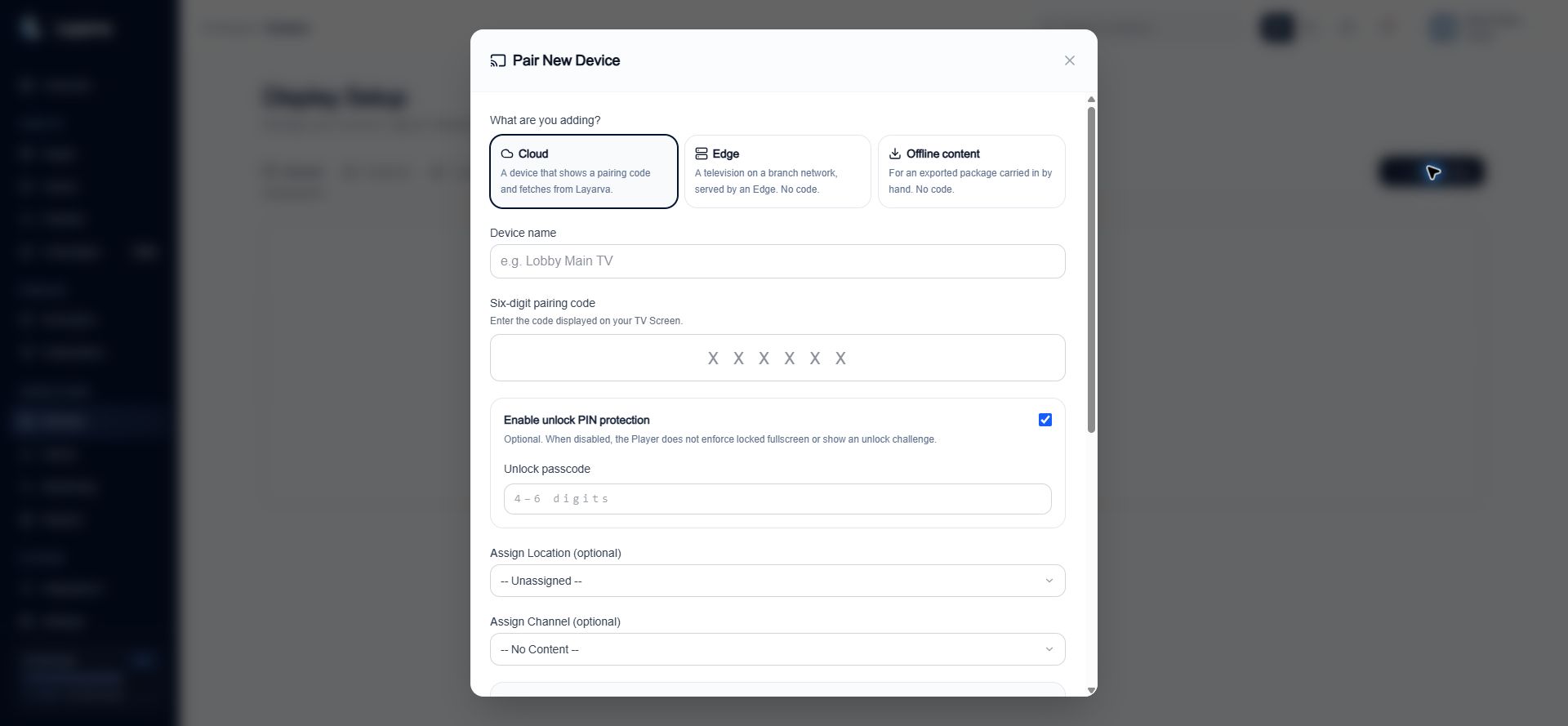 | Mode | What the form requires |
| ------------------- | ---------------------------------------------------------------------------------------------------------------------- |
| **Cloud** | Screen name and a live six-digit code. Location, Channel, unlock PIN, resolution, and fit are optional. |
| **Edge** | Screen name and an active Edge device. No pairing code is used because the Edge serves the Screen over the branch LAN. |
| **Offline content** | Screen name and a Channel. No pairing code is used because content is carried to the device as a signed package. |
## Steps
1. Open **Screens** and select **Pair Screen**.
2. Choose **Cloud**, **Edge**, or **Offline content**.
3. Enter a device name that identifies its physical purpose or position.
4. Complete the mode-specific configuration:
* Cloud requires a six-digit pairing code.
* Edge requires a paired and entitled Layarva Edge environment.
* Offline content requires a Channel so the exported package has an immutable playback target.
5. Configure resolution and content fit.
6. Optionally assign the Screen to a Location and Channel.
7. Select **Pair Device** for Cloud or **Create Screen** for Edge and Offline content.
## Expected result
The Screen appears in the Devices list with its current connectivity, playback, assignment, and health state.
## Important notes
* Queue content is online-required and is not included in offline content packages.
* Edge availability depends on the workspace plan and Edge-device entitlement.
* Content-fit applies to the complete Design, image, or video.
* Creating an Edge or Offline Screen creates a valid Screen record without a device token. Its status can remain offline until its delivery workflow is completed.
## Troubleshooting
If the selected mode is unavailable, confirm plan entitlement, device compatibility, and the workspace's Edge configuration.
## Related guides
* [Pair a Screen](/screens/pairing)
* [Understand Cloud, Edge, and Offline](/screens/delivery-modes)
* [Generate Offline Content](/screens/offline-content)
* [Add Your First Screen](/getting-started/add-first-screen)
| Mode | What the form requires |
| ------------------- | ---------------------------------------------------------------------------------------------------------------------- |
| **Cloud** | Screen name and a live six-digit code. Location, Channel, unlock PIN, resolution, and fit are optional. |
| **Edge** | Screen name and an active Edge device. No pairing code is used because the Edge serves the Screen over the branch LAN. |
| **Offline content** | Screen name and a Channel. No pairing code is used because content is carried to the device as a signed package. |
## Steps
1. Open **Screens** and select **Pair Screen**.
2. Choose **Cloud**, **Edge**, or **Offline content**.
3. Enter a device name that identifies its physical purpose or position.
4. Complete the mode-specific configuration:
* Cloud requires a six-digit pairing code.
* Edge requires a paired and entitled Layarva Edge environment.
* Offline content requires a Channel so the exported package has an immutable playback target.
5. Configure resolution and content fit.
6. Optionally assign the Screen to a Location and Channel.
7. Select **Pair Device** for Cloud or **Create Screen** for Edge and Offline content.
## Expected result
The Screen appears in the Devices list with its current connectivity, playback, assignment, and health state.
## Important notes
* Queue content is online-required and is not included in offline content packages.
* Edge availability depends on the workspace plan and Edge-device entitlement.
* Content-fit applies to the complete Design, image, or video.
* Creating an Edge or Offline Screen creates a valid Screen record without a device token. Its status can remain offline until its delivery workflow is completed.
## Troubleshooting
If the selected mode is unavailable, confirm plan entitlement, device compatibility, and the workspace's Edge configuration.
## Related guides
* [Pair a Screen](/screens/pairing)
* [Understand Cloud, Edge, and Offline](/screens/delivery-modes)
* [Generate Offline Content](/screens/offline-content)
* [Add Your First Screen](/getting-started/add-first-screen)