> ## Documentation Index
> Fetch the complete documentation index at: https://docs.layarva.com/llms.txt
> Use this file to discover all available pages before exploring further.
# Configure a Queue Kiosk
> Create and pair a Cloud Kiosk, configure services and printing, and understand Edge Kiosk enrollment.
## What you'll accomplish
You will configure a customer-facing ticket Kiosk, protect it with an unlock PIN, select its services and print template, and choose Cloud or Edge operation.
## Cloud and Edge Kiosks differ
| | Cloud Kiosk | Edge Kiosk |
| ------------ | --------------------------- | ---------------------------------------------- |
| Identity | Named, paired Kiosk station | Enrolls locally with the Queue Unit branch PIN |
| Quantity | Managed station records | Any number of local branch clients |
| Template | Stored on the Kiosk record | Queue Unit `defaultKioskTemplateId` |
| Connectivity | Cloud session | Branch LAN to Edge |
## Create a Cloud Kiosk
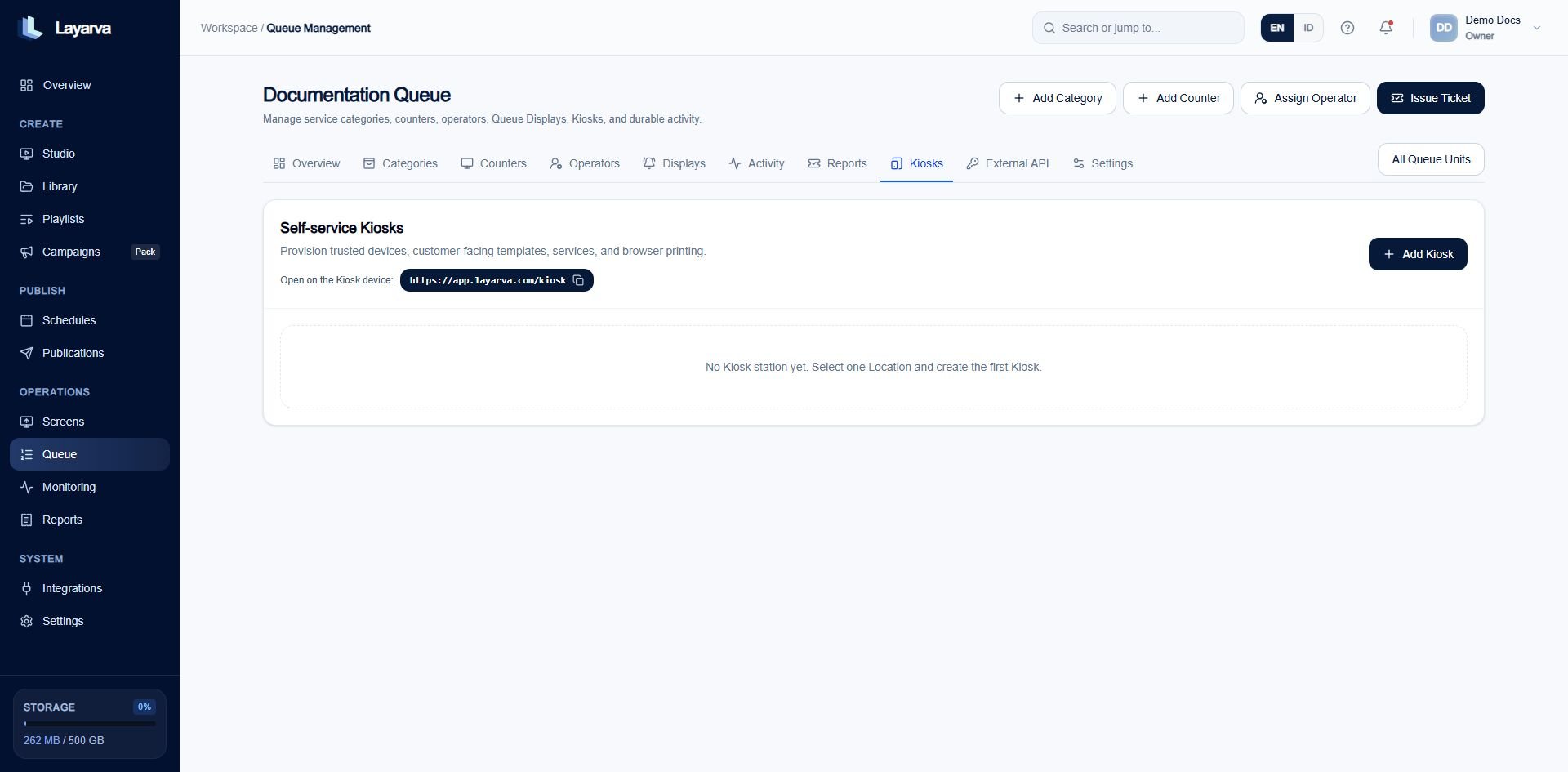
1. Open the Queue Unit and select **Kiosks**.
2. Select **Add Kiosk**.
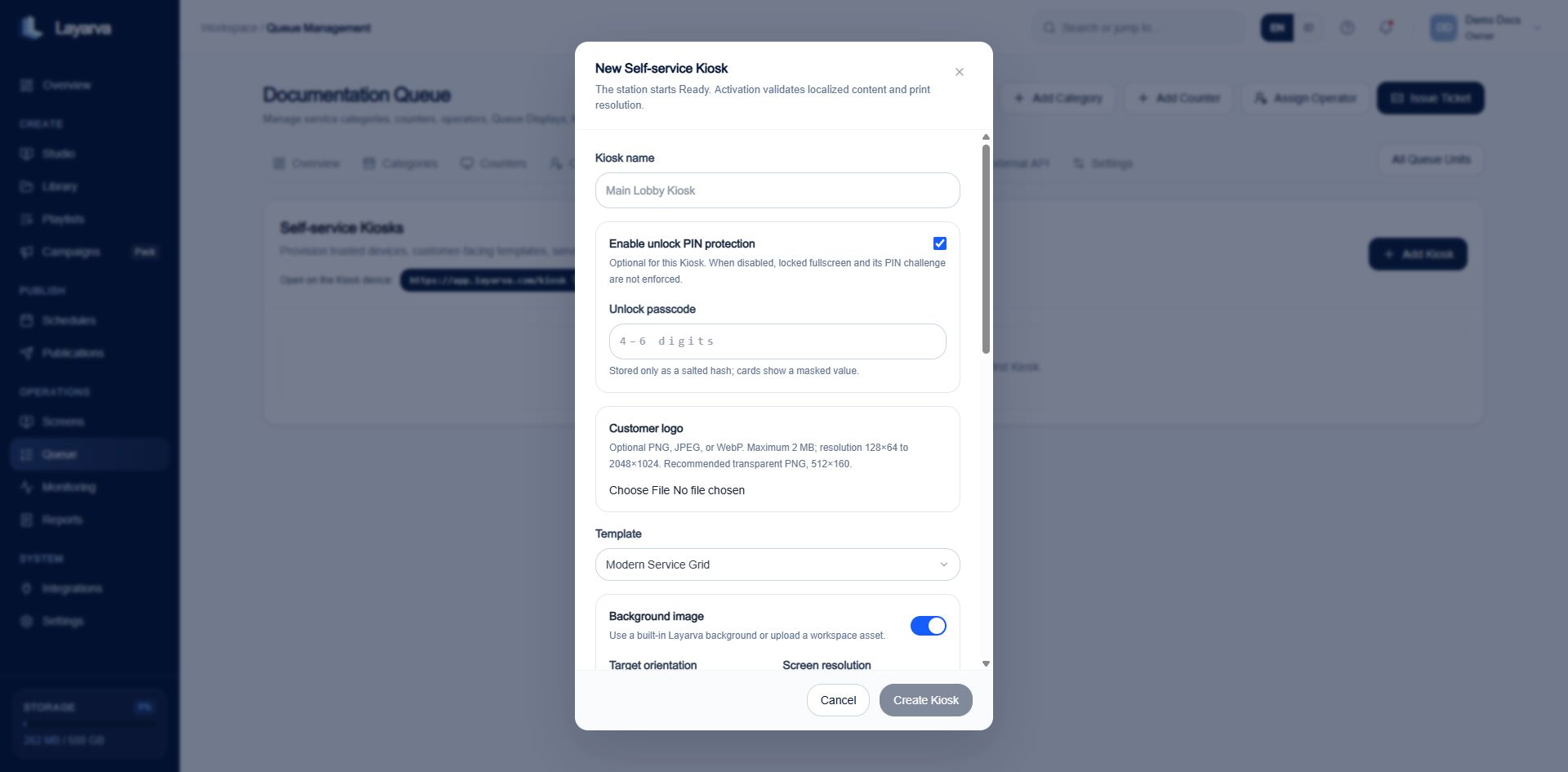
3. Enter the Kiosk name and Location.
4. Choose whether to enable a four-to-six-digit unlock PIN.
5. Select a customer-facing template, orientation, resolution, and background.
6. Enable the service Categories customers can select.
7. Choose the Print Template.
8. Create the Kiosk.
 ## Pair the Cloud Kiosk
1. Open `https://app.layarva.com/kiosk` on the Kiosk device.
2. Request or display the six-digit Kiosk pairing code.
3. Enter the code in the Kiosk pairing workflow.
4. Verify that the secure Kiosk session is created and the station becomes Ready.
The session is stored in an HTTP-only, Secure, SameSite-Strict cookie. Unlock identity comes from that session, not from a Kiosk ID supplied by the browser.
## Unlock protection
A Kiosk unlock PIN is four to six numeric digits. Attempts are limited to five per five minutes per Kiosk token. A Kiosk without an active paired session cannot use the unlock endpoint.
## Printing
* A Cloud Kiosk uses the browser print path and records print-job evidence.
* An Edge Kiosk can use the installed Edge application's printer integration.
* The selected Print Template determines paper width, block layout, logo, QR, and footer.
* Always perform a physical test on the target printer before opening the Kiosk to customers.
## Related guides
* [Design and Print Queue Tickets](/queue/ticket-printing)
* [Hand a Queue Unit to Edge](/edge/queue-authority)
* [Queue Management Overview](/queue/overview)
## Pair the Cloud Kiosk
1. Open `https://app.layarva.com/kiosk` on the Kiosk device.
2. Request or display the six-digit Kiosk pairing code.
3. Enter the code in the Kiosk pairing workflow.
4. Verify that the secure Kiosk session is created and the station becomes Ready.
The session is stored in an HTTP-only, Secure, SameSite-Strict cookie. Unlock identity comes from that session, not from a Kiosk ID supplied by the browser.
## Unlock protection
A Kiosk unlock PIN is four to six numeric digits. Attempts are limited to five per five minutes per Kiosk token. A Kiosk without an active paired session cannot use the unlock endpoint.
## Printing
* A Cloud Kiosk uses the browser print path and records print-job evidence.
* An Edge Kiosk can use the installed Edge application's printer integration.
* The selected Print Template determines paper width, block layout, logo, QR, and footer.
* Always perform a physical test on the target printer before opening the Kiosk to customers.
## Related guides
* [Design and Print Queue Tickets](/queue/ticket-printing)
* [Hand a Queue Unit to Edge](/edge/queue-authority)
* [Queue Management Overview](/queue/overview)