> ## Documentation Index
> Fetch the complete documentation index at: https://docs.layarva.com/llms.txt
> Use this file to discover all available pages before exploring further.
# Create and Manage Schedules
> Use a Schedule to play one exact Playlist version on one Channel at a defined time.
## What a Schedule is
A **Schedule** is a time rule that temporarily makes one immutable Playlist version active on one Channel. When its window ends, the Channel returns to its Default Playlist.
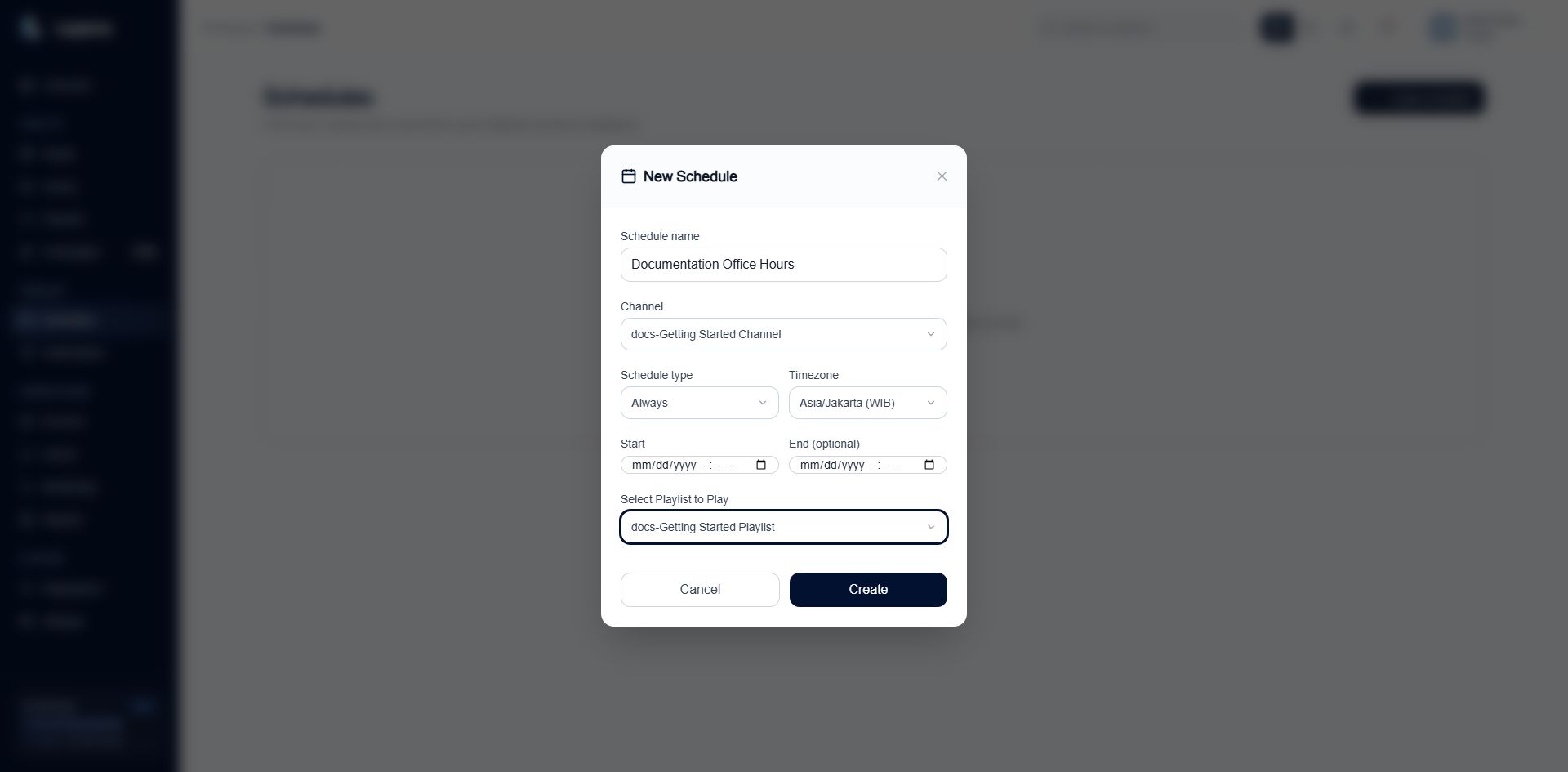 ## Timing types
| Type | Behavior |
| ------------ | ---------------------------------------------------------------------- |
| **Always** | Applies continuously while the Schedule is enabled. |
| **One time** | Applies once between a start and optional end date and time. |
| **Weekly** | Applies on selected weekdays during one or more start and end windows. |
Every Schedule has a timezone. The entered clock time is interpreted in that timezone, not in the browser's current timezone.
## Create a Schedule
1. Open **Schedules** and select **Create Schedule**.
2. Enter a recognizable Schedule name.
3. Select the Channel.
4. Select **Always**, **One time**, or **Weekly**.
5. Set the timezone and timing fields.
6. Select the exact Ready Playlist version to play.
7. Select **Create**.
The Channel needs a Default Playlist before the Schedule can be safely enabled. That fallback is restored when the timed override ends.
## Understand the two status badges
| Status family | Values | Answers |
| ----------------- | --------------------------- | ------------------------------------------------- |
| **Control state** | Draft, Enabled, Paused | Should Layarva execute this Schedule? |
| **Runtime state** | Upcoming, Active now, Ended | What does the configured calendar window say now? |
An Enabled Schedule can be Upcoming, Active, or Ended. A Paused Schedule keeps its timing definition but does not execute it.
## Runtime occurrences
Layarva creates execution records for the Schedule boundaries. A start occurrence activates the scheduled Playlist; an end occurrence restores the Channel fallback. The detail page shows whether the latest occurrence is waiting, processing, completed, missed, skipped, or needs attention.
## Manage a Schedule
* **Edit Schedule** changes the timing or target configuration.
* **Pause Schedule** stops execution without deleting the definition.
* **Resume Schedule** plans remaining occurrences again.
* **Duplicate as Draft** creates a safe editable copy.
* **Delete Schedule** removes it; verify that the Channel has another valid playback rule first.
## Related guides
* [Campaigns and Schedules](/publishing/campaigns)
* [Understand Publishing](/studio/publishing)
## Timing types
| Type | Behavior |
| ------------ | ---------------------------------------------------------------------- |
| **Always** | Applies continuously while the Schedule is enabled. |
| **One time** | Applies once between a start and optional end date and time. |
| **Weekly** | Applies on selected weekdays during one or more start and end windows. |
Every Schedule has a timezone. The entered clock time is interpreted in that timezone, not in the browser's current timezone.
## Create a Schedule
1. Open **Schedules** and select **Create Schedule**.
2. Enter a recognizable Schedule name.
3. Select the Channel.
4. Select **Always**, **One time**, or **Weekly**.
5. Set the timezone and timing fields.
6. Select the exact Ready Playlist version to play.
7. Select **Create**.
The Channel needs a Default Playlist before the Schedule can be safely enabled. That fallback is restored when the timed override ends.
## Understand the two status badges
| Status family | Values | Answers |
| ----------------- | --------------------------- | ------------------------------------------------- |
| **Control state** | Draft, Enabled, Paused | Should Layarva execute this Schedule? |
| **Runtime state** | Upcoming, Active now, Ended | What does the configured calendar window say now? |
An Enabled Schedule can be Upcoming, Active, or Ended. A Paused Schedule keeps its timing definition but does not execute it.
## Runtime occurrences
Layarva creates execution records for the Schedule boundaries. A start occurrence activates the scheduled Playlist; an end occurrence restores the Channel fallback. The detail page shows whether the latest occurrence is waiting, processing, completed, missed, skipped, or needs attention.
## Manage a Schedule
* **Edit Schedule** changes the timing or target configuration.
* **Pause Schedule** stops execution without deleting the definition.
* **Resume Schedule** plans remaining occurrences again.
* **Duplicate as Draft** creates a safe editable copy.
* **Delete Schedule** removes it; verify that the Channel has another valid playback rule first.
## Related guides
* [Campaigns and Schedules](/publishing/campaigns)
* [Understand Publishing](/studio/publishing)