> ## Documentation Index
> Fetch the complete documentation index at: https://docs.layarva.com/llms.txt
> Use this file to discover all available pages before exploring further.
# Monitor Operations
> Use Operational Monitoring to investigate Screen, delivery, Queue, Kiosk, and durable issue health.
## What you'll accomplish
You will filter the monitoring snapshot, interpret health evidence, and close an issue when the underlying condition has been resolved.
## Prerequisites
* `monitoring.view` to read the dashboard.
* `monitoring.manage` to resolve issues. Owner, Admin, and Operator have operational access.
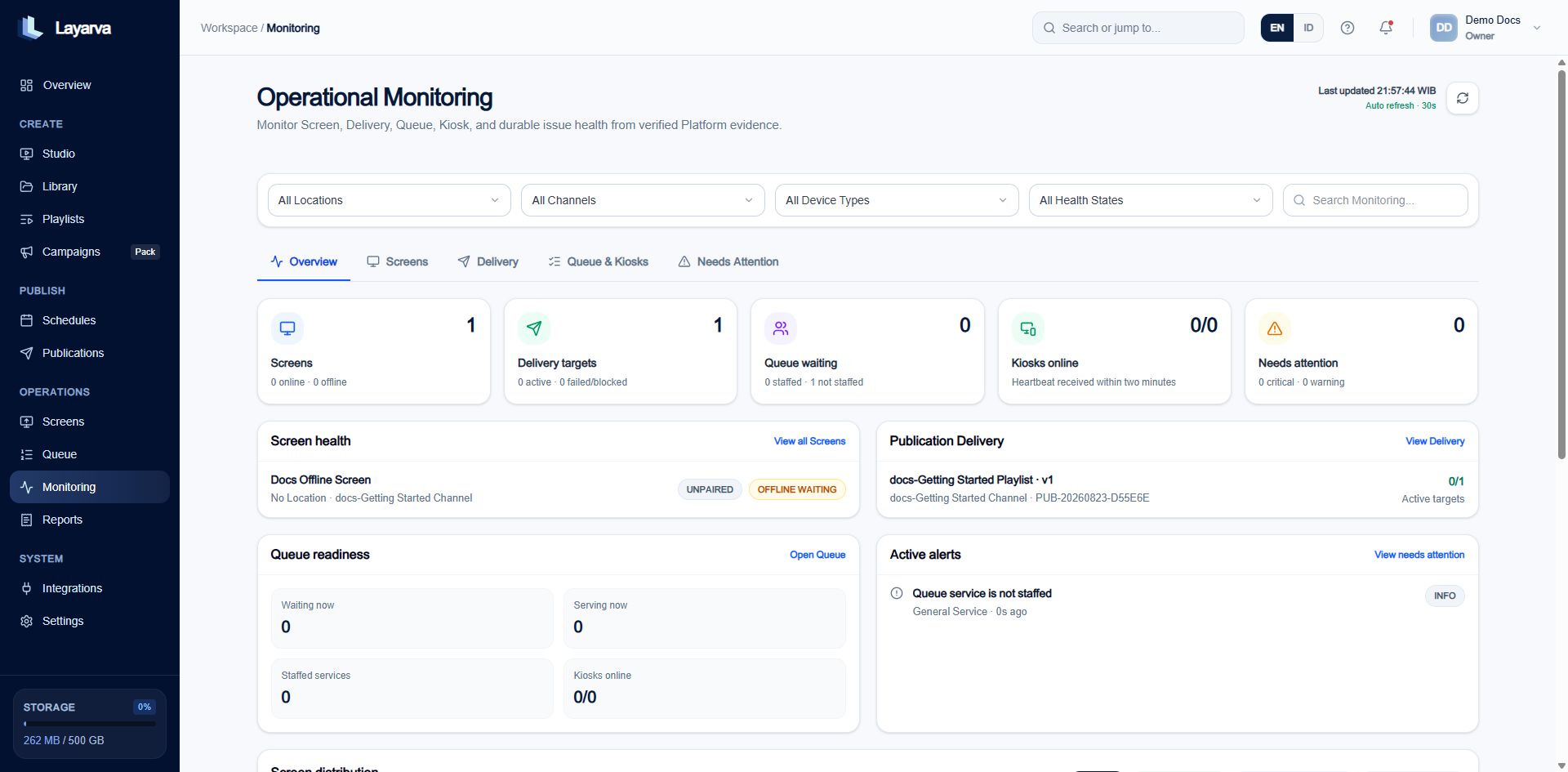 ## What is monitored
* Screen connectivity derived from authorized heartbeat evidence.
* Screen content freshness and delivery synchronization.
* Actual output resolution and Player type.
* Verified, user-defined, or unknown location evidence.
* Publication delivery acknowledgement.
* Queue Display and staffed-service readiness.
* Kiosk heartbeat and browser print-job evidence.
* Durable monitoring issues and their event history.
## Screen connectivity
Cloud Players report every 30 seconds. Three missed intervals—90 seconds—derive **Offline**. A fresh authorized heartbeat returns the Screen to **Online**.
An Offline-content Screen always appears offline because it is not designed to heartbeat. That is different from a Cloud Screen that unexpectedly stopped reporting.
## Use the dashboard
1. Filter by Location, Channel, device type, or health state.
2. Use **Screens** for heartbeat, resolution, Player, and location evidence.
3. Use **Delivery** for Publication staging and acknowledgement.
4. Use **Queue & Kiosks** for service staffing, device sessions, and print jobs.
5. Use **Needs Attention** for durable issues.
6. Open an issue, verify the evidence, and resolve it only after the condition is corrected.
The browser refreshes the snapshot every 30 seconds. A background reconciliation worker also maintains issue state, so the UI is not the only source of truth.
## Important evidence limits
Monitoring claims Platform heartbeat, delivery acknowledgements, Queue configuration, Kiosk sessions, and browser print-job evidence. It does not claim direct physical printer or speaker telemetry unless a supported device reports it.
## Related guides
* [Proof of Play Reports](/reports/proof-of-play)
* [Queue Operational Reports](/queue/reports)
* [Assign Screens to Edge](/edge/screen-assignment)
## What is monitored
* Screen connectivity derived from authorized heartbeat evidence.
* Screen content freshness and delivery synchronization.
* Actual output resolution and Player type.
* Verified, user-defined, or unknown location evidence.
* Publication delivery acknowledgement.
* Queue Display and staffed-service readiness.
* Kiosk heartbeat and browser print-job evidence.
* Durable monitoring issues and their event history.
## Screen connectivity
Cloud Players report every 30 seconds. Three missed intervals—90 seconds—derive **Offline**. A fresh authorized heartbeat returns the Screen to **Online**.
An Offline-content Screen always appears offline because it is not designed to heartbeat. That is different from a Cloud Screen that unexpectedly stopped reporting.
## Use the dashboard
1. Filter by Location, Channel, device type, or health state.
2. Use **Screens** for heartbeat, resolution, Player, and location evidence.
3. Use **Delivery** for Publication staging and acknowledgement.
4. Use **Queue & Kiosks** for service staffing, device sessions, and print jobs.
5. Use **Needs Attention** for durable issues.
6. Open an issue, verify the evidence, and resolve it only after the condition is corrected.
The browser refreshes the snapshot every 30 seconds. A background reconciliation worker also maintains issue state, so the UI is not the only source of truth.
## Important evidence limits
Monitoring claims Platform heartbeat, delivery acknowledgements, Queue configuration, Kiosk sessions, and browser print-job evidence. It does not claim direct physical printer or speaker telemetry unless a supported device reports it.
## Related guides
* [Proof of Play Reports](/reports/proof-of-play)
* [Queue Operational Reports](/queue/reports)
* [Assign Screens to Edge](/edge/screen-assignment)