> ## Documentation Index
> Fetch the complete documentation index at: https://docs.layarva.com/llms.txt
> Use this file to discover all available pages before exploring further.
# Manage the Library
> Organize workspace media, backgrounds, Lottie animations, and saved Studio Designs with groups and tags.
## What the Library is
Library is the workspace-owned content repository used by Studio and Playlists. It keeps reusable assets separate from the Canvas where they are arranged and the Playlist where they are sequenced.
The Library is divided into these content scopes:
| Tab | Stores | Typical use |
| -------------- | ------------------------- | ------------------------------------------------------ |
| **Media** | Images, video, and audio | Add directly to Studio or a Playlist. |
| **Background** | Managed background images | Apply as a Studio Canvas background. |
| **Lottie** | Lottie JSON animations | Add reusable vector animation to Studio or a Playlist. |
| **Studio** | Saved Canvas Designs | Reopen a Design or add it to a Playlist. |
Custom Widgets and the **Custom Widget** Library tab are intentionally outside the scope of this documentation phase.
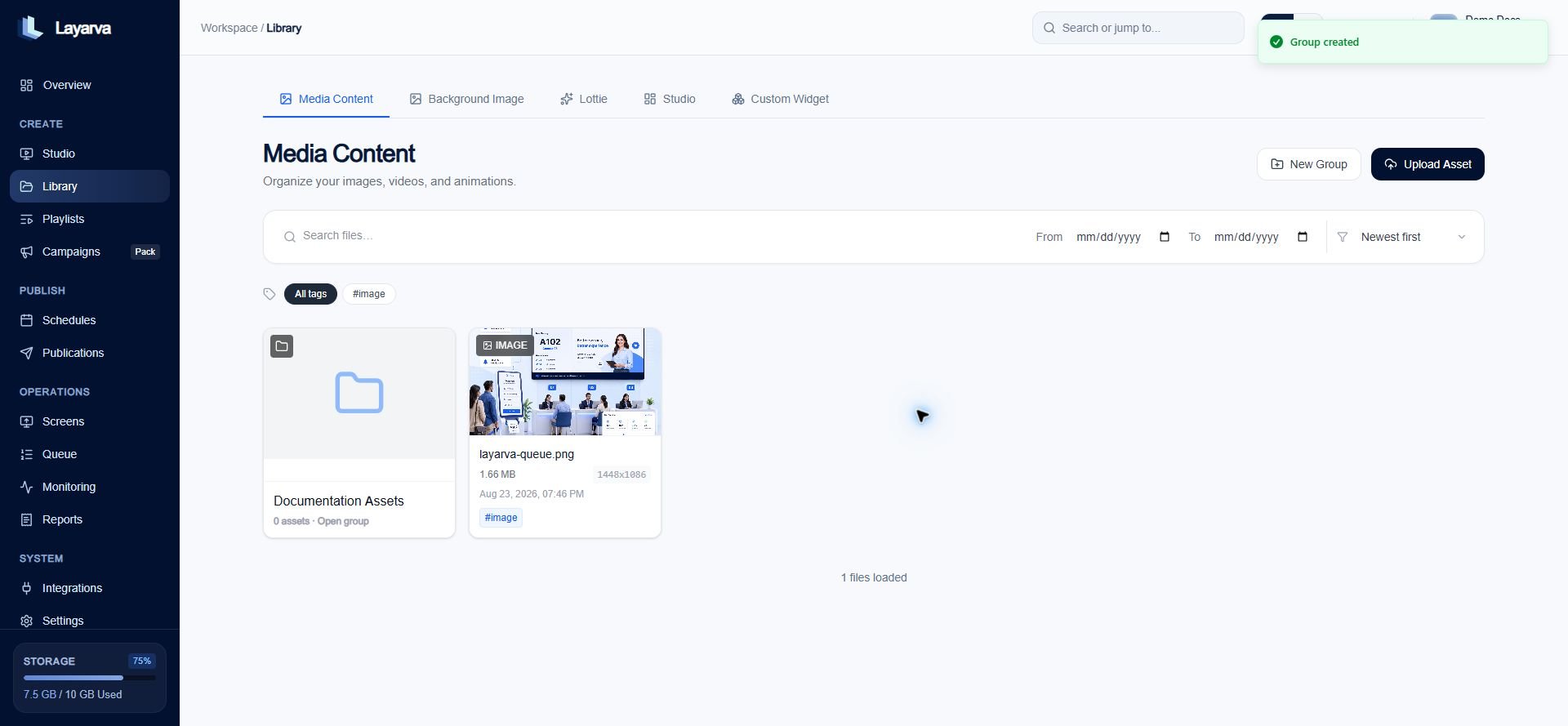 ## Groups and tags solve different problems
| Tool | Purpose | Example |
| --------- | ---------------------------------------------------------------------------------------------------------- | --------------------------------------------------------- |
| **Group** | A folder-like home for an asset inside one Library tab. An asset belongs to one group or the root Library. | `Lobby Screens`, `Promo Videos`, or `Branch Backgrounds`. |
| **Tag** | A searchable label. One asset can have several tags. | `ramadan`, `portrait`, and `approved`. |
Groups do not cross Library types. A Media group and a Background group can use the same name, but they remain separate scopes.
## Create a Group
1. Open **Library** from the sidebar.
2. Select **Media**, **Background**, or **Lottie**.
3. Select **New Group**.
4. Enter a recognizable name.
5. Select **Create**.
## Groups and tags solve different problems
| Tool | Purpose | Example |
| --------- | ---------------------------------------------------------------------------------------------------------- | --------------------------------------------------------- |
| **Group** | A folder-like home for an asset inside one Library tab. An asset belongs to one group or the root Library. | `Lobby Screens`, `Promo Videos`, or `Branch Backgrounds`. |
| **Tag** | A searchable label. One asset can have several tags. | `ramadan`, `portrait`, and `approved`. |
Groups do not cross Library types. A Media group and a Background group can use the same name, but they remain separate scopes.
## Create a Group
1. Open **Library** from the sidebar.
2. Select **Media**, **Background**, or **Lottie**.
3. Select **New Group**.
4. Enter a recognizable name.
5. Select **Create**.
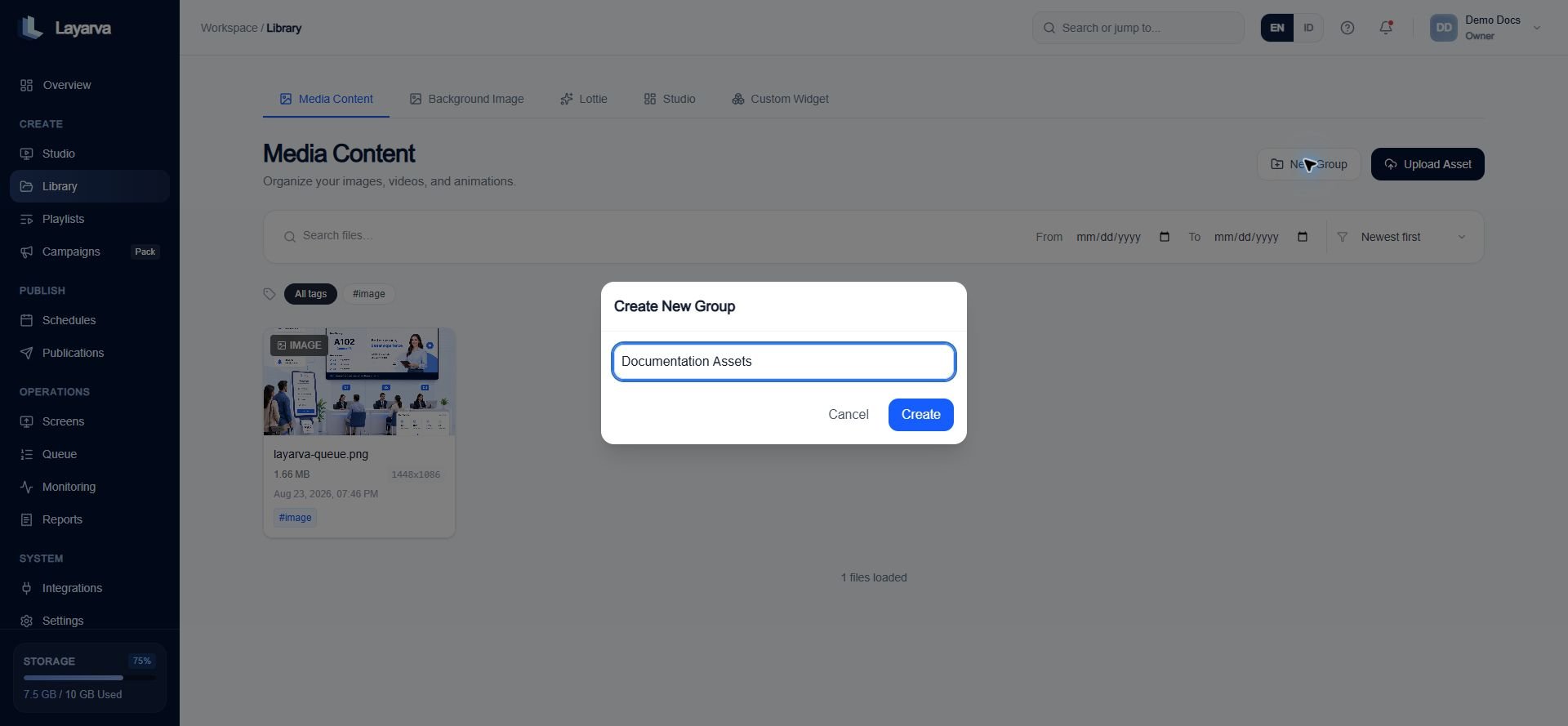 The group card displays its asset count and a representative preview. Open the card to load its contents.
## Move an asset into a Group
1. Open the asset menu.
2. Select **Move to group**.
3. Choose the destination group, or select **Root Library** to remove the group assignment.
The asset disappears from the current view and becomes available in the destination. Moving an asset does not duplicate its stored file.
## Find and manage assets
* Search by file name.
* Filter by a date range.
* Sort by newest, oldest, or name.
* Filter with tags; media-type tags such as image or video identify the asset type.
* Open a group to use bulk selection and deletion controls.
* Preview an asset before opening it in Studio or adding it to a Playlist.
## Delete behavior
* **Delete Group** removes the group but safely moves its assets back to the root Library.
* **Permanently Delete** removes the selected asset and its stored file. This action cannot be undone.
Use groups for ownership or destination, such as a branch or campaign. Use tags for properties that can overlap, such as orientation, approval state, or season.
## Related guides
* [Create and Edit a Design](/studio/canvas)
* [Create a Playlist](/studio/playlists)
The group card displays its asset count and a representative preview. Open the card to load its contents.
## Move an asset into a Group
1. Open the asset menu.
2. Select **Move to group**.
3. Choose the destination group, or select **Root Library** to remove the group assignment.
The asset disappears from the current view and becomes available in the destination. Moving an asset does not duplicate its stored file.
## Find and manage assets
* Search by file name.
* Filter by a date range.
* Sort by newest, oldest, or name.
* Filter with tags; media-type tags such as image or video identify the asset type.
* Open a group to use bulk selection and deletion controls.
* Preview an asset before opening it in Studio or adding it to a Playlist.
## Delete behavior
* **Delete Group** removes the group but safely moves its assets back to the root Library.
* **Permanently Delete** removes the selected asset and its stored file. This action cannot be undone.
Use groups for ownership or destination, such as a branch or campaign. Use tags for properties that can overlap, such as orientation, approval state, or season.
## Related guides
* [Create and Edit a Design](/studio/canvas)
* [Create a Playlist](/studio/playlists)