> ## Documentation Index
> Fetch the complete documentation index at: https://docs.layarva.com/llms.txt
> Use this file to discover all available pages before exploring further.
# Set Up Your Workspace
> Complete workspace onboarding and choose a publishing policy.
## What you'll accomplish
You will name a newly provisioned workspace, optionally invite a teammate, choose a publishing policy, and finish onboarding.
## Prerequisites
* A newly provisioned Layarva workspace.
* Owner access to that workspace.
## Steps
1. Enter the workspace name that your team will recognize.
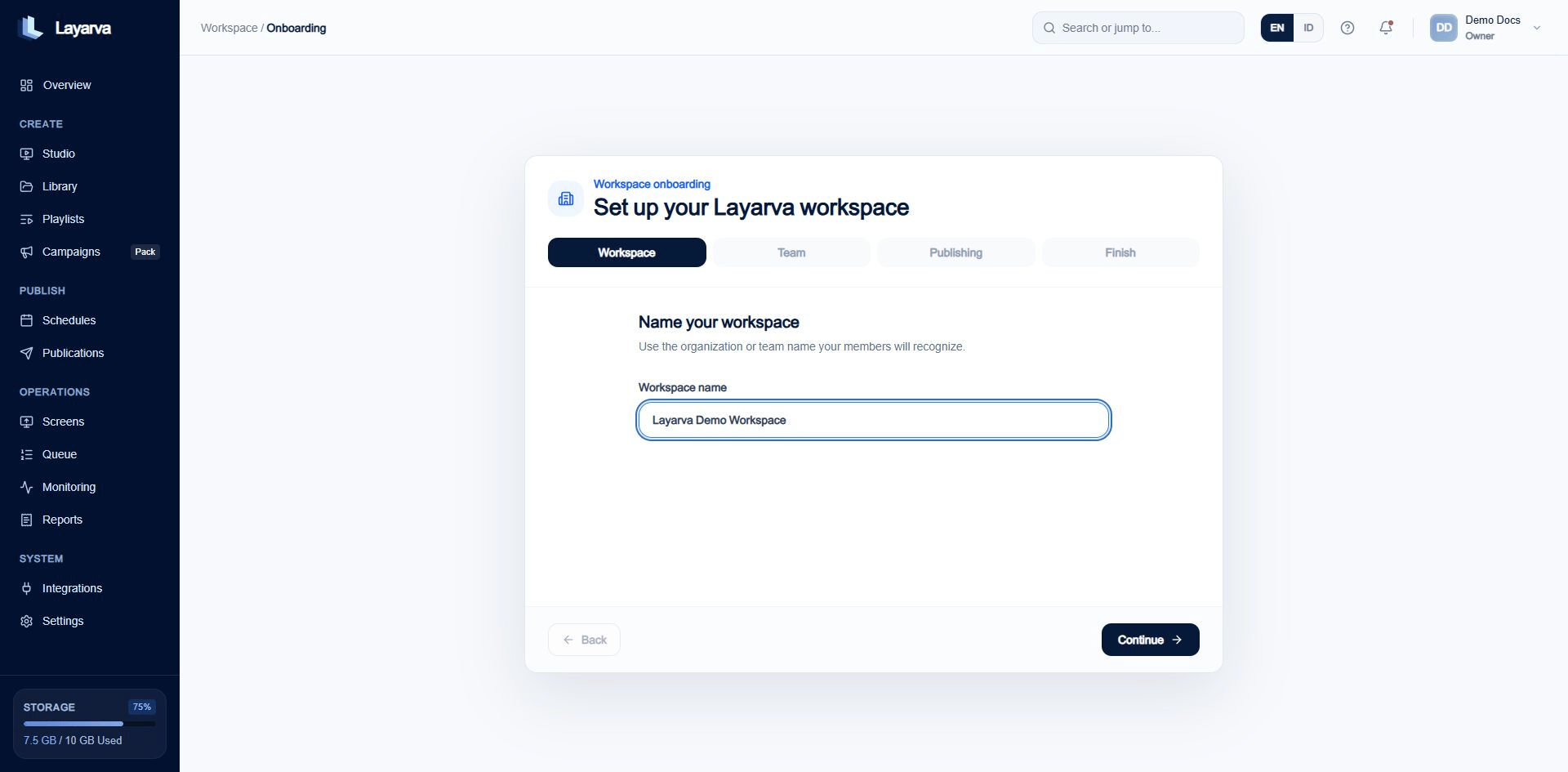 2. Select **Continue**.
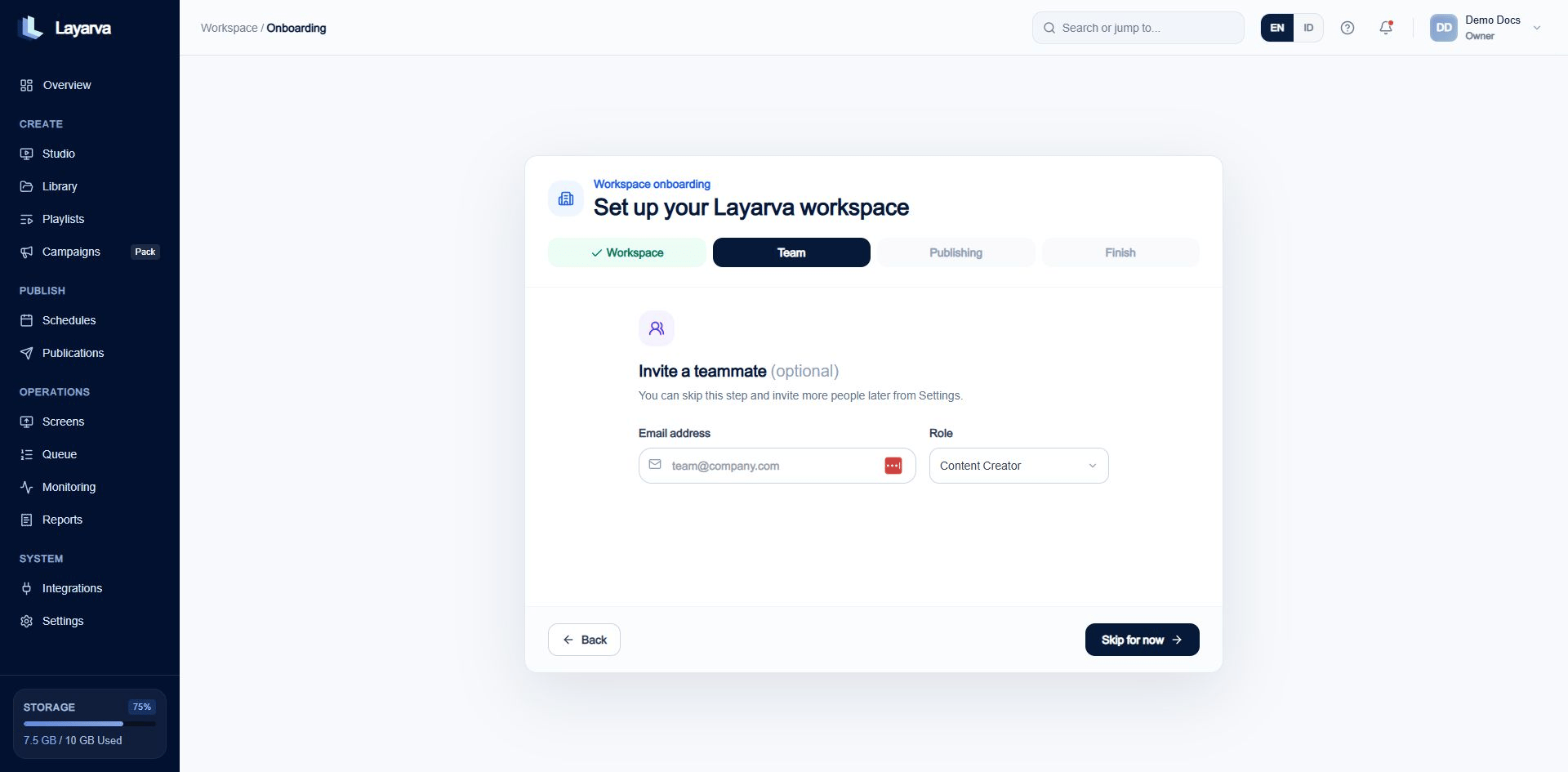
3. Enter a teammate's email and role, or select **Skip for now**.
2. Select **Continue**.
3. Enter a teammate's email and role, or select **Skip for now**.
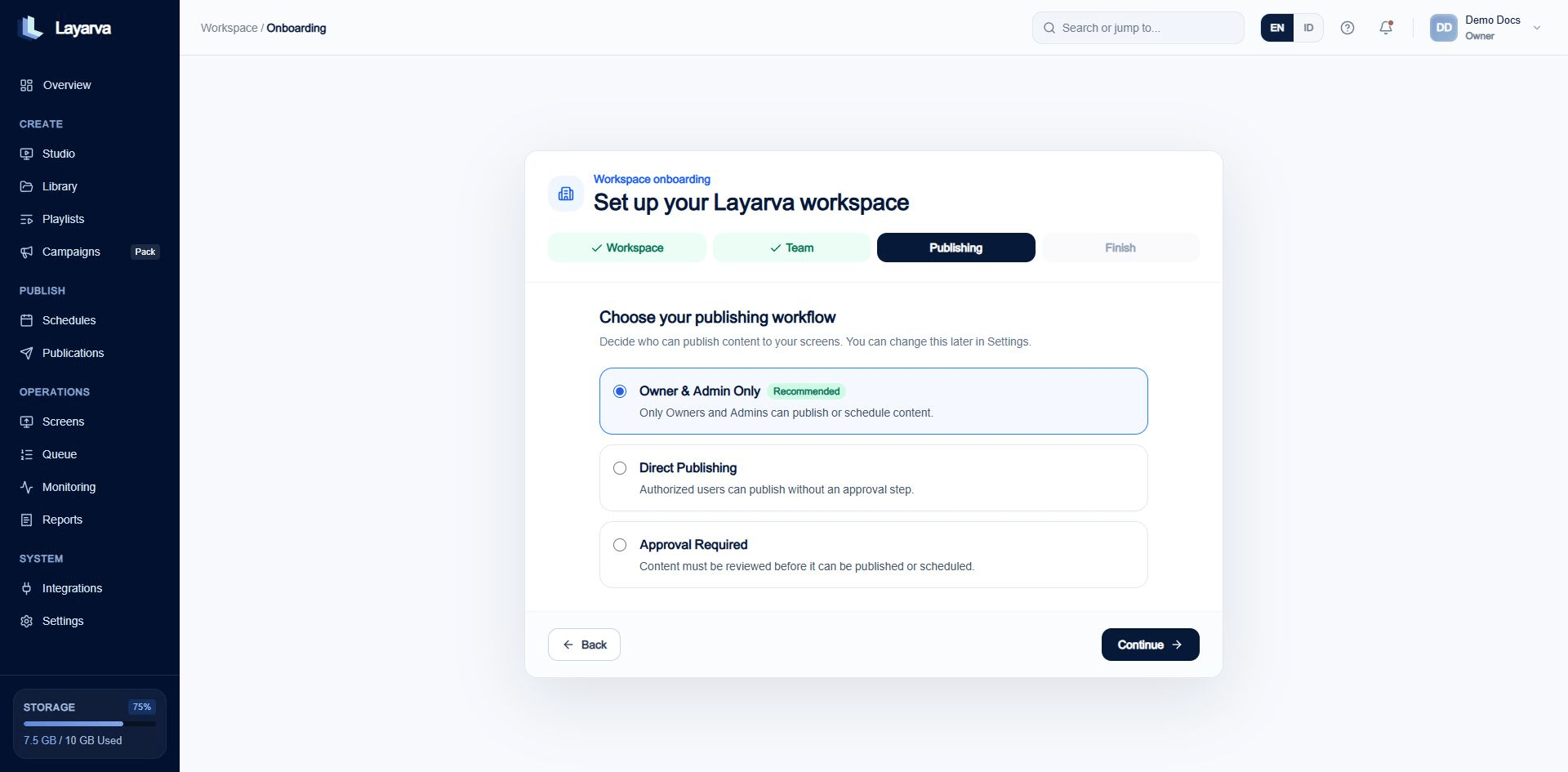
 4. Choose a publishing workflow:
* **Owner & Admin Only** — only Owners and Admins publish or schedule.
* **Direct Publishing** — authorized roles publish without an approval step.
* **Approval Required** — publishing requires approval for the exact source version.
4. Choose a publishing workflow:
* **Owner & Admin Only** — only Owners and Admins publish or schedule.
* **Direct Publishing** — authorized roles publish without an approval step.
* **Approval Required** — publishing requires approval for the exact source version.
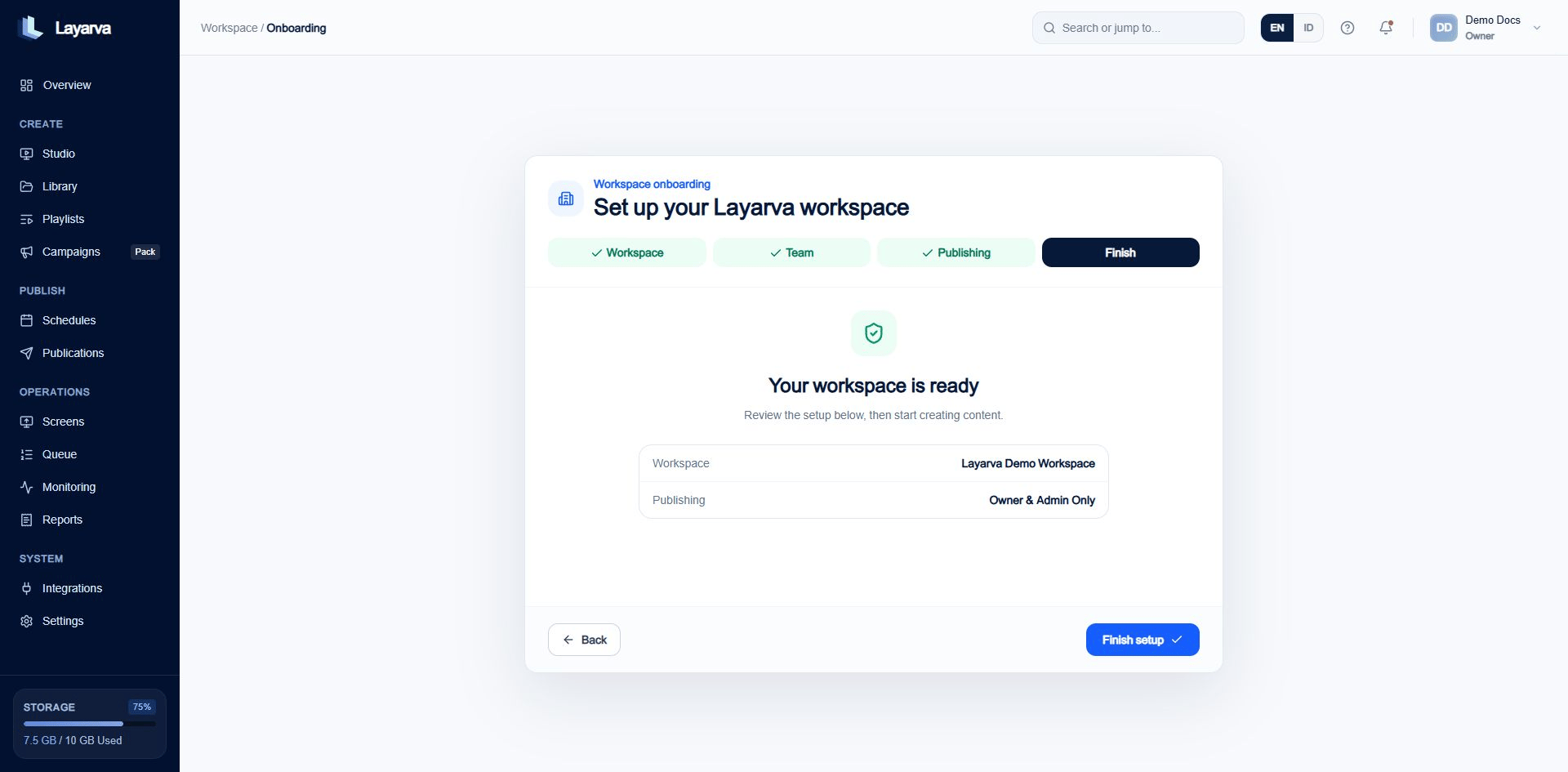
 5. Review the workspace name and publishing policy.
6. Select **Finish setup**.
5. Review the workspace name and publishing policy.
6. Select **Finish setup**.
 ## Expected result
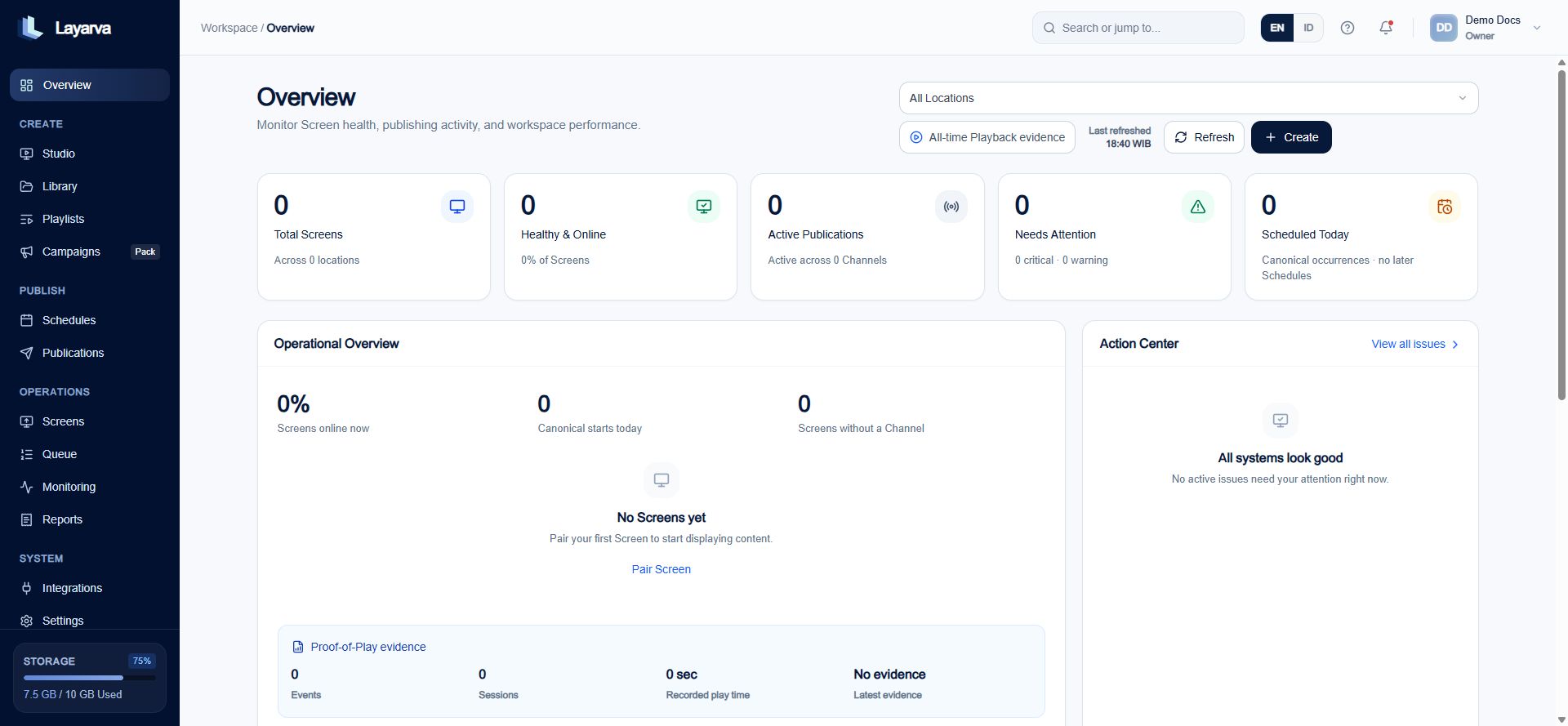
Layarva opens the workspace Overview. The activity feed records that onboarding was completed.
## Expected result
Layarva opens the workspace Overview. The activity feed records that onboarding was completed.
 ## Important notes
* You can invite more members and review publishing settings later from **Settings**.
* Publishing policy affects who may publish, schedule, request approval, or approve content.
* Billing configuration is separate from workspace onboarding.
## Troubleshooting
If onboarding reopens unexpectedly, confirm that every step was completed and that your session belongs to the intended workspace.
## Related guides
* [Add Your First Screen](/getting-started/add-first-screen)
* [Create a Design](/studio/canvas)
## Important notes
* You can invite more members and review publishing settings later from **Settings**.
* Publishing policy affects who may publish, schedule, request approval, or approve content.
* Billing configuration is separate from workspace onboarding.
## Troubleshooting
If onboarding reopens unexpectedly, confirm that every step was completed and that your session belongs to the intended workspace.
## Related guides
* [Add Your First Screen](/getting-started/add-first-screen)
* [Create a Design](/studio/canvas)