> ## Documentation Index
> Fetch the complete documentation index at: https://docs.layarva.com/llms.txt
> Use this file to discover all available pages before exploring further.
# Accept an Invitation and Sign In
> Access Layarva using an invitation or an account provisioned for your organization.
## What you'll accomplish
You will activate an invited account and sign in to your Layarva workspace.
## Prerequisites
* An invitation email from a Layarva workspace, or an account provisioned for you.
* Access to the invited email address.
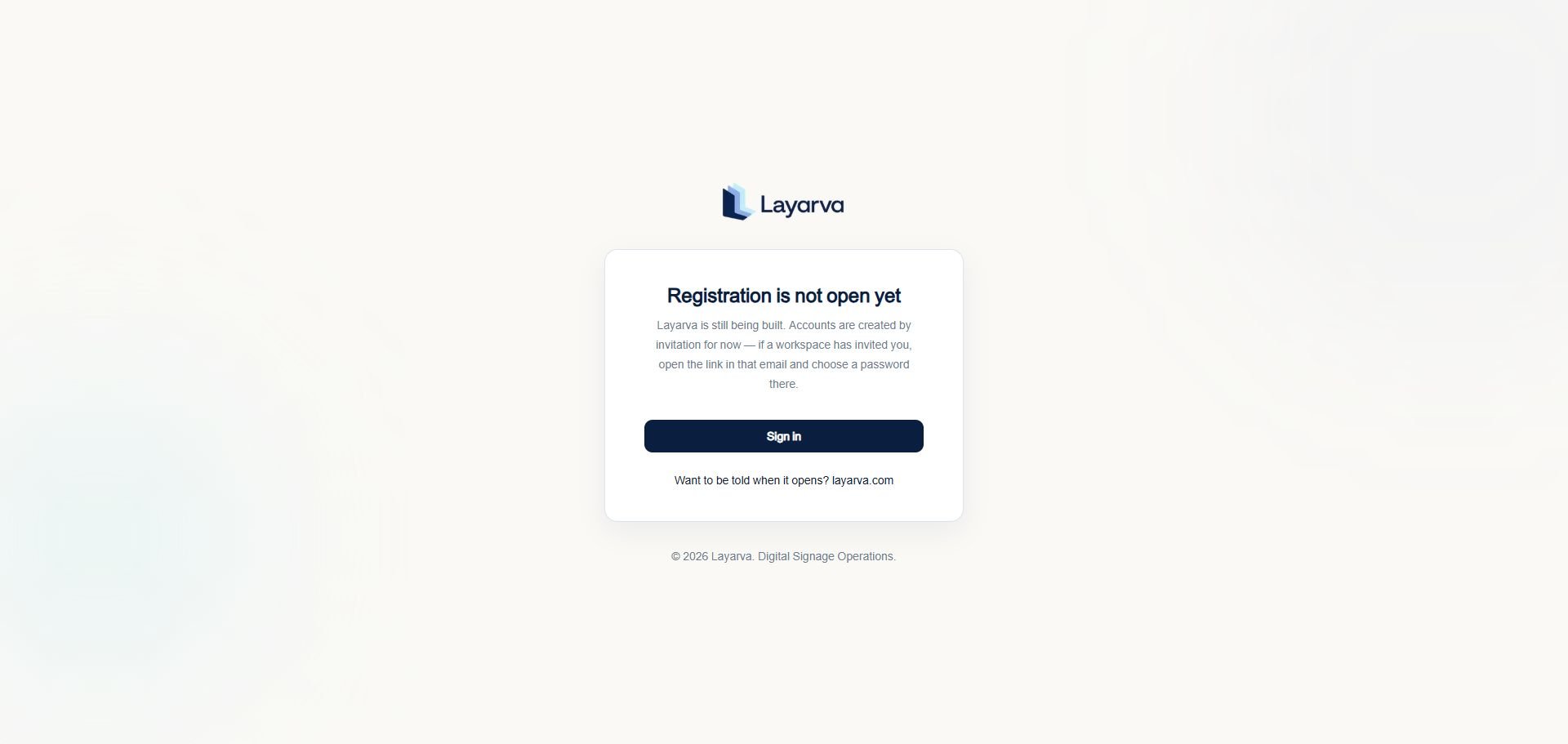
Public self-registration is not open. Accounts are currently created by invitation.
 ## Steps
1. Open the invitation link sent to your email address.
2. Choose a password when the invitation page asks you to activate the account.
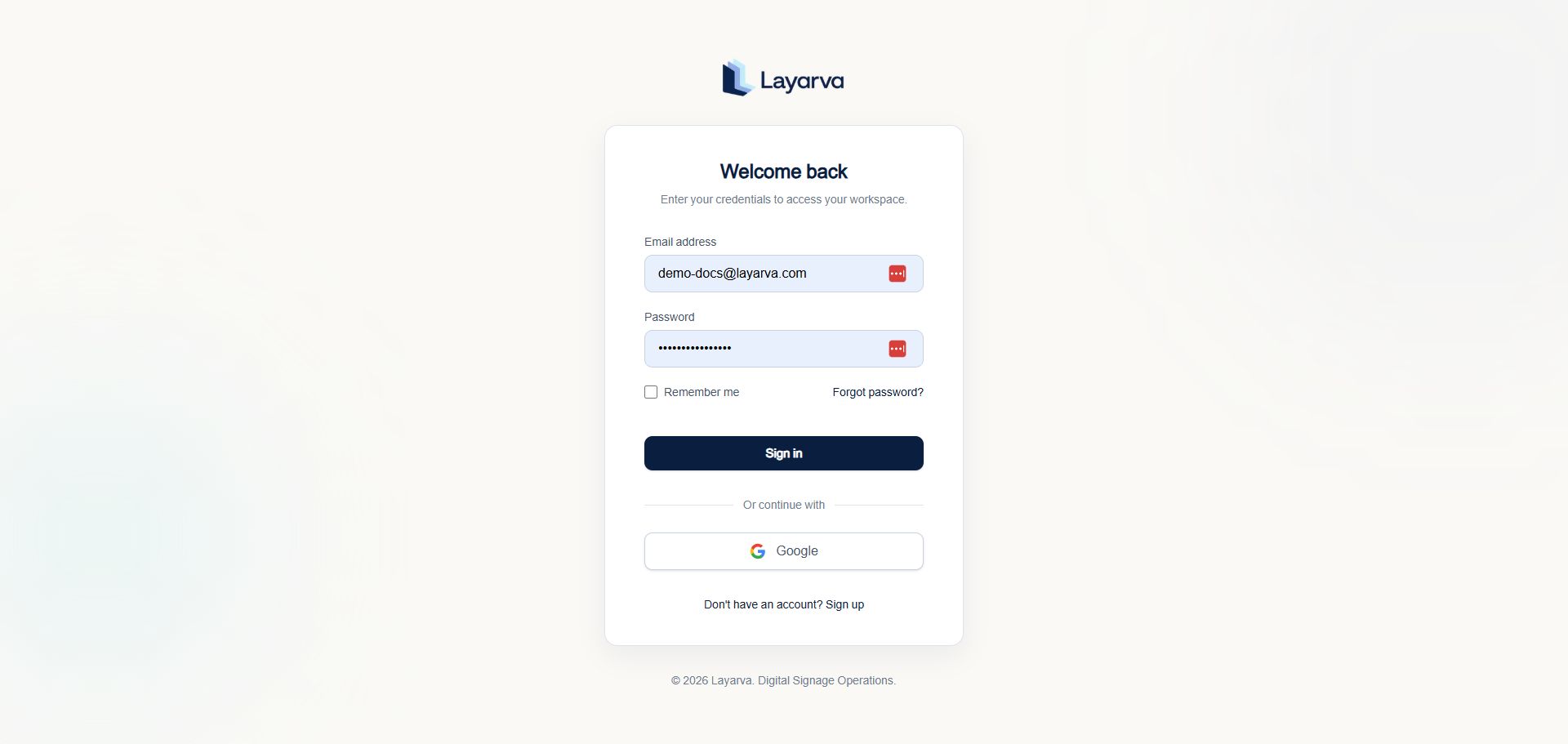
3. Open the [Layarva sign-in page](https://www.layarva.com/auth/sign-in).
4. Enter your invited email address and password.
5. Select **Sign in**.
## Steps
1. Open the invitation link sent to your email address.
2. Choose a password when the invitation page asks you to activate the account.
3. Open the [Layarva sign-in page](https://www.layarva.com/auth/sign-in).
4. Enter your invited email address and password.
5. Select **Sign in**.
 ## Expected result
Layarva opens your assigned workspace. A new workspace may open its onboarding flow first.
## Important notes
* Your workspace role is assigned by the inviter.
* Do not share invitation links or passwords.
* Selecting **Sign up** does not create a public account while registration remains closed.
## Troubleshooting
If the invitation link has expired or your workspace does not appear, ask a workspace Owner or Admin to send a new invitation.
> **BELUM TERVERIFIKASI**: The invitation acceptance screen was not captured because no disposable invitation was created for this documentation session.
## Related guides
* [Set Up Your Workspace](/getting-started/create-workspace)
* [Get Started with Layarva](/getting-started/introduction)
## Expected result
Layarva opens your assigned workspace. A new workspace may open its onboarding flow first.
## Important notes
* Your workspace role is assigned by the inviter.
* Do not share invitation links or passwords.
* Selecting **Sign up** does not create a public account while registration remains closed.
## Troubleshooting
If the invitation link has expired or your workspace does not appear, ask a workspace Owner or Admin to send a new invitation.
> **BELUM TERVERIFIKASI**: The invitation acceptance screen was not captured because no disposable invitation was created for this documentation session.
## Related guides
* [Set Up Your Workspace](/getting-started/create-workspace)
* [Get Started with Layarva](/getting-started/introduction)