> ## Documentation Index
> Fetch the complete documentation index at: https://docs.layarva.com/llms.txt
> Use this file to discover all available pages before exploring further.
# Add Your First Screen
> Open the pairing workflow and connect a display device to your workspace.
## What you'll accomplish
You will open the Screen pairing dialog and prepare a Cloud, Edge, or offline display for your workspace.
## Prerequisites
* Owner, Admin, or another role with Screen pairing permission.
* For a Cloud Screen, a display showing a valid six-digit Layarva pairing code.
## Steps
1. In the sidebar, select **Screens**.
2. Select **Pair Screen**.
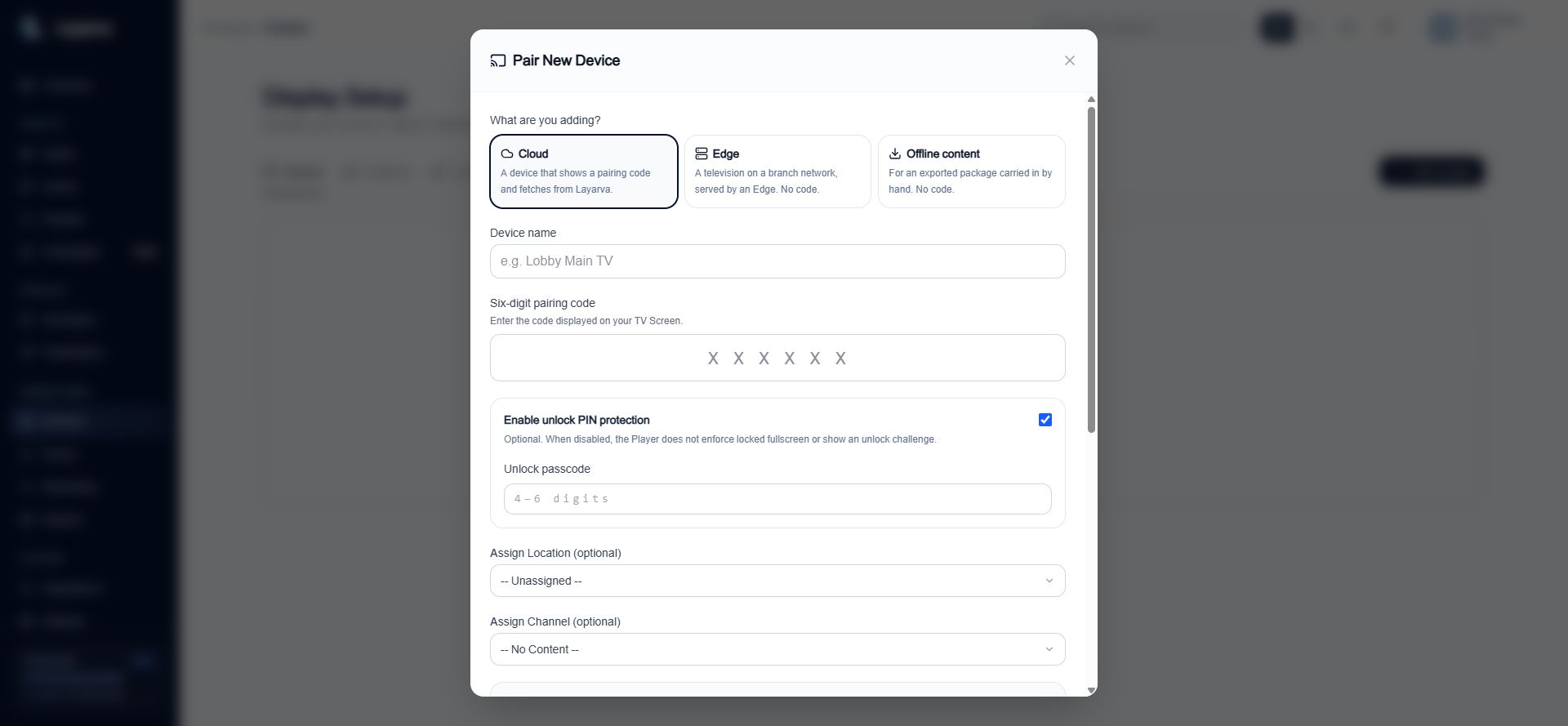
3. Choose the device type:
* **Cloud** for a device that displays a pairing code and fetches from Layarva.
* **Edge** for a television served by Layarva Edge on a branch network.
* **Offline content** for a package imported manually.
4. For a Cloud Screen, enter a recognizable device name and the six-digit code shown on the display.
5. Decide whether to enable unlock PIN protection. If enabled, enter a numeric passcode containing 4–6 digits.
6. Optionally assign a Location and Channel.
7. Confirm the target resolution and content fit.
8. Select **Pair Device**.
 ## Expected result
The new Screen appears on the **Devices** tab. A Cloud Player starts receiving content when it is paired, assigned to a Channel, and allowed to play.
## Important notes
* Pairing codes expire and must never be copied into documentation or support screenshots.
* An unlock passcode is a device security control, not the pairing code.
* A Screen may be paired before it is assigned content.
## Troubleshooting
* Generate a new code on the display if the existing code has expired.
* Verify that all six digits were entered in the correct order.
* If **Pair Device** remains disabled, check the required name, code, and unlock-passcode fields.
> **BELUM TERVERIFIKASI**: A fresh Browser Player pairing-code screen could not be captured because the connected Chrome profile is already paired to a different display. No existing device session was reset.
## Related guides
* [Pair a Screen](/screens/pairing)
* [Publish Your First Content](/getting-started/publish-first-content)
## Expected result
The new Screen appears on the **Devices** tab. A Cloud Player starts receiving content when it is paired, assigned to a Channel, and allowed to play.
## Important notes
* Pairing codes expire and must never be copied into documentation or support screenshots.
* An unlock passcode is a device security control, not the pairing code.
* A Screen may be paired before it is assigned content.
## Troubleshooting
* Generate a new code on the display if the existing code has expired.
* Verify that all six digits were entered in the correct order.
* If **Pair Device** remains disabled, check the required name, code, and unlock-passcode fields.
> **BELUM TERVERIFIKASI**: A fresh Browser Player pairing-code screen could not be captured because the connected Chrome profile is already paired to a different display. No existing device session was reset.
## Related guides
* [Pair a Screen](/screens/pairing)
* [Publish Your First Content](/getting-started/publish-first-content)