> ## Documentation Index
> Fetch the complete documentation index at: https://docs.layarva.com/llms.txt
> Use this file to discover all available pages before exploring further.
# Add and Pair an Edge
> Create a Windows or Android Edge record and pair the branch device with a temporary code.
## What you'll accomplish
You will create an Edge device record, receive its temporary pairing code, and verify that the branch device becomes active.
## Prerequisites
* Owner or Admin access with Queue and Screen management permission.
* A supported Windows or Android Edge installation.
* Outbound internet access for initial pairing.
* LAN access from the future Kiosks and Screens to the Edge host.
## Create the Edge record
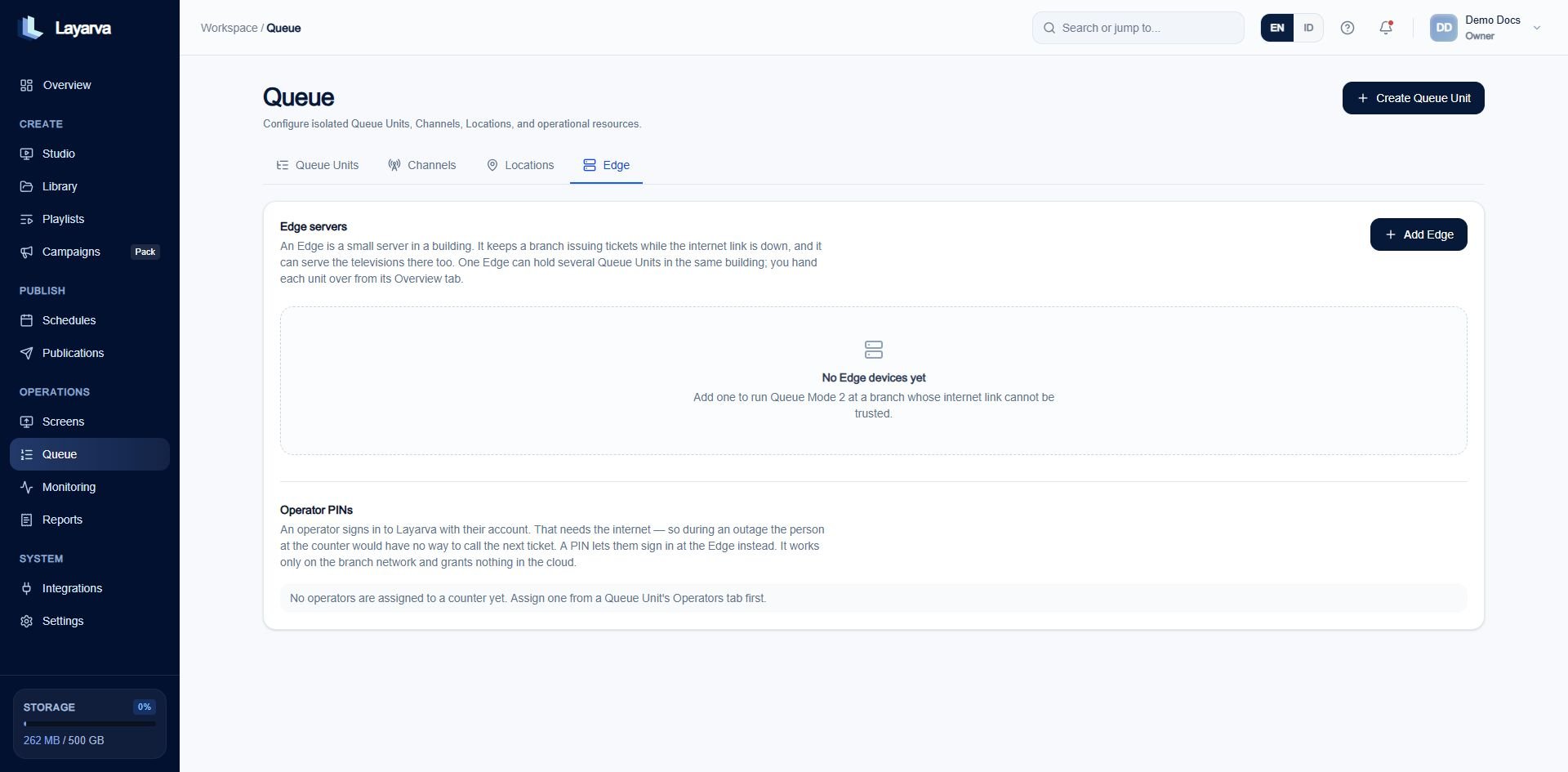
1. Open **Queue → Edge** or **Screens → Edge**.
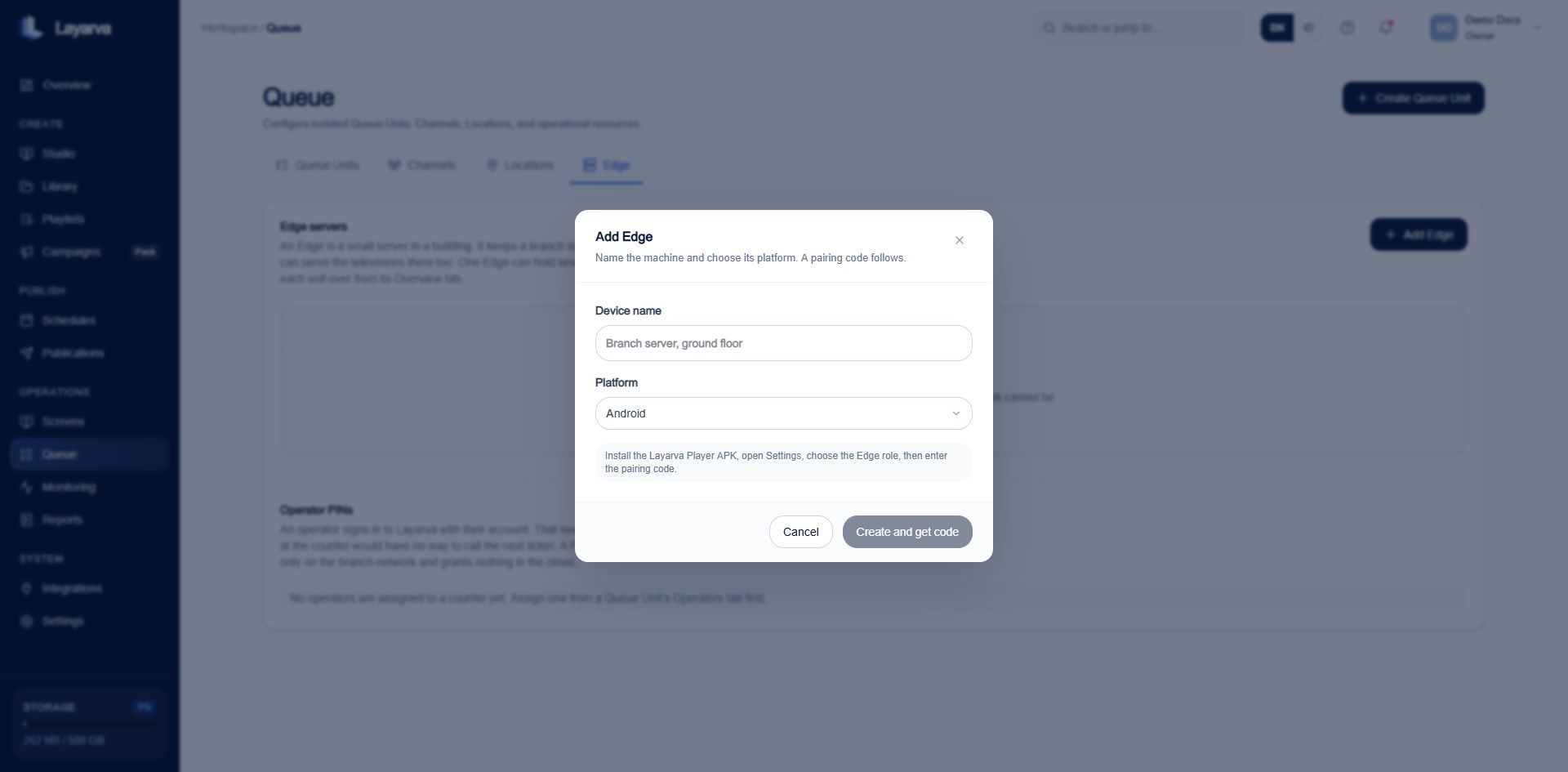
2. Select **Add Edge**.
3. Enter a name that identifies the physical branch machine.
4. Select **Windows** or **Android**.
5. Select **Create and get code**.
 ## Pair the branch software
1. Install and open Layarva Edge on the branch machine.
2. Choose the Edge role in its setup.
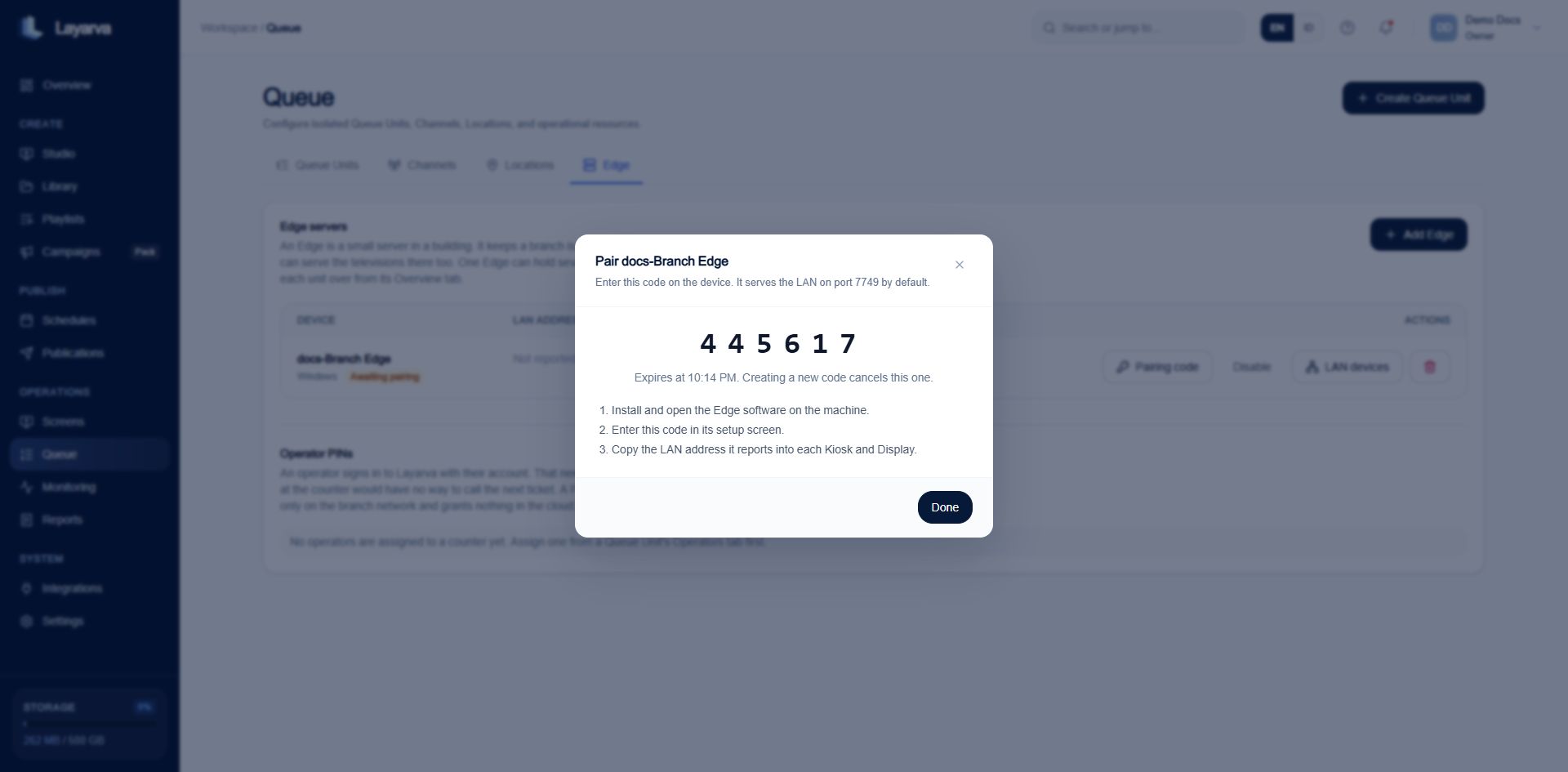
3. Enter the temporary six-digit code shown by the dashboard.
4. Wait for the Platform to show the device as **Active** and report its LAN address.
5. Confirm that port `7749` is reachable from the branch network.
## Pair the branch software
1. Install and open Layarva Edge on the branch machine.
2. Choose the Edge role in its setup.
3. Enter the temporary six-digit code shown by the dashboard.
4. Wait for the Platform to show the device as **Active** and report its LAN address.
5. Confirm that port `7749` is reachable from the branch network.
 ## Expected result
The Edge is Active, has a last-sync time and LAN address, and can be selected for Screen handover or Queue authority.
## Troubleshooting
* If the code expires, select **Pairing code** to generate a new one.
* If the device never reports a LAN address, verify its interface selection and outbound connection.
* If branch devices cannot connect, allow local TCP traffic to port `7749` and verify they are on a routable LAN/VLAN.
* Do not hand over production operations until the device has synchronized and its clock is trusted.
## Related guides
* [Assign Screens to Edge](/edge/screen-assignment)
* [Hand a Queue Unit to Edge](/edge/queue-authority)
## Expected result
The Edge is Active, has a last-sync time and LAN address, and can be selected for Screen handover or Queue authority.
## Troubleshooting
* If the code expires, select **Pairing code** to generate a new one.
* If the device never reports a LAN address, verify its interface selection and outbound connection.
* If branch devices cannot connect, allow local TCP traffic to port `7749` and verify they are on a routable LAN/VLAN.
* Do not hand over production operations until the device has synchronized and its clock is trusted.
## Related guides
* [Assign Screens to Edge](/edge/screen-assignment)
* [Hand a Queue Unit to Edge](/edge/queue-authority)